How to Generate More Poses and Views from a Model Image
How to Generate Model Poses
Step 1: Enter Model Generation > Pose Mode
Select the Pose tab on the model generation section.
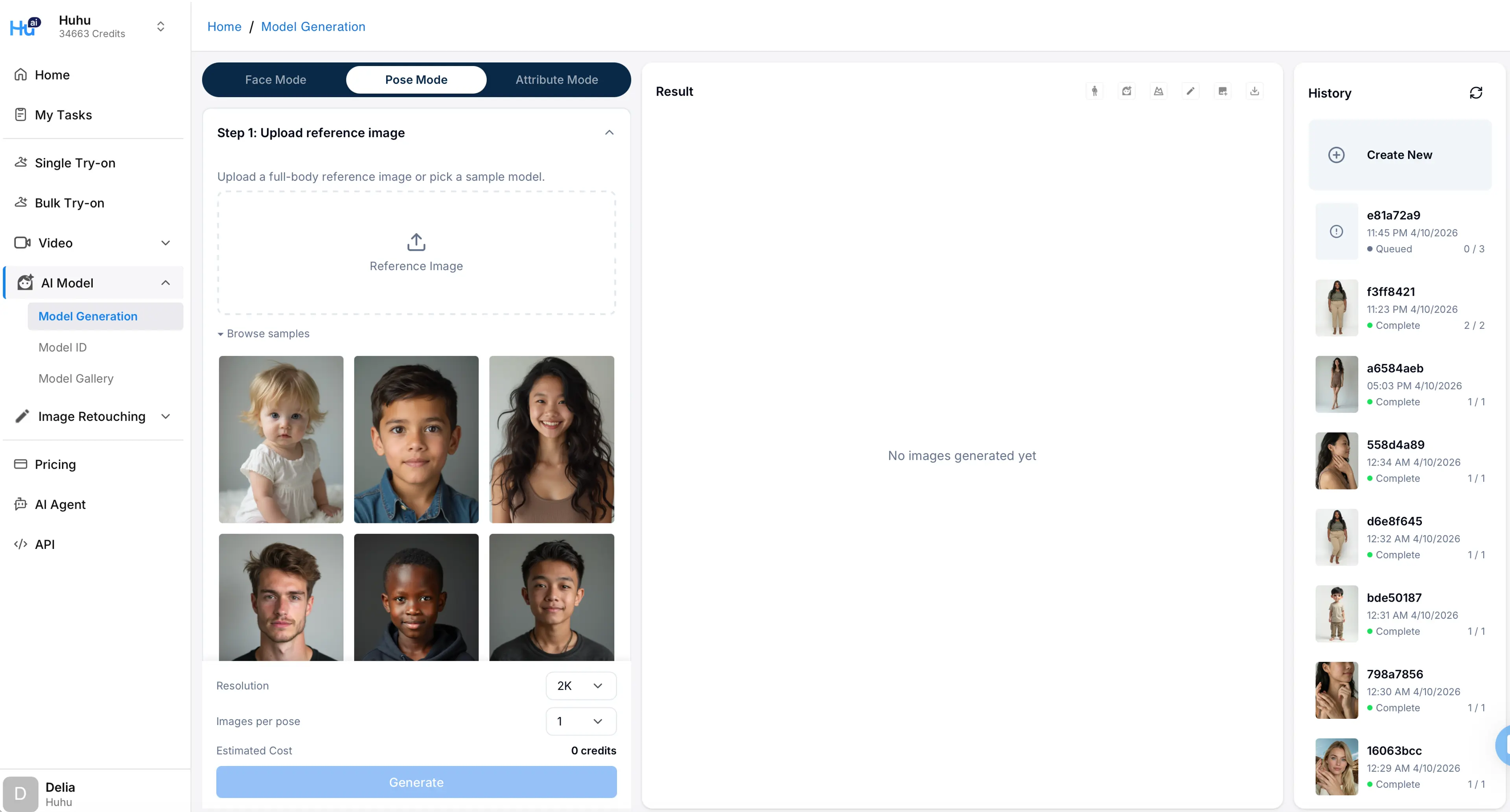
Step 2: Upload a model image
Upload a model image. Please note: if you are using a real person’s image, you need to get their permissions to generate more variations.
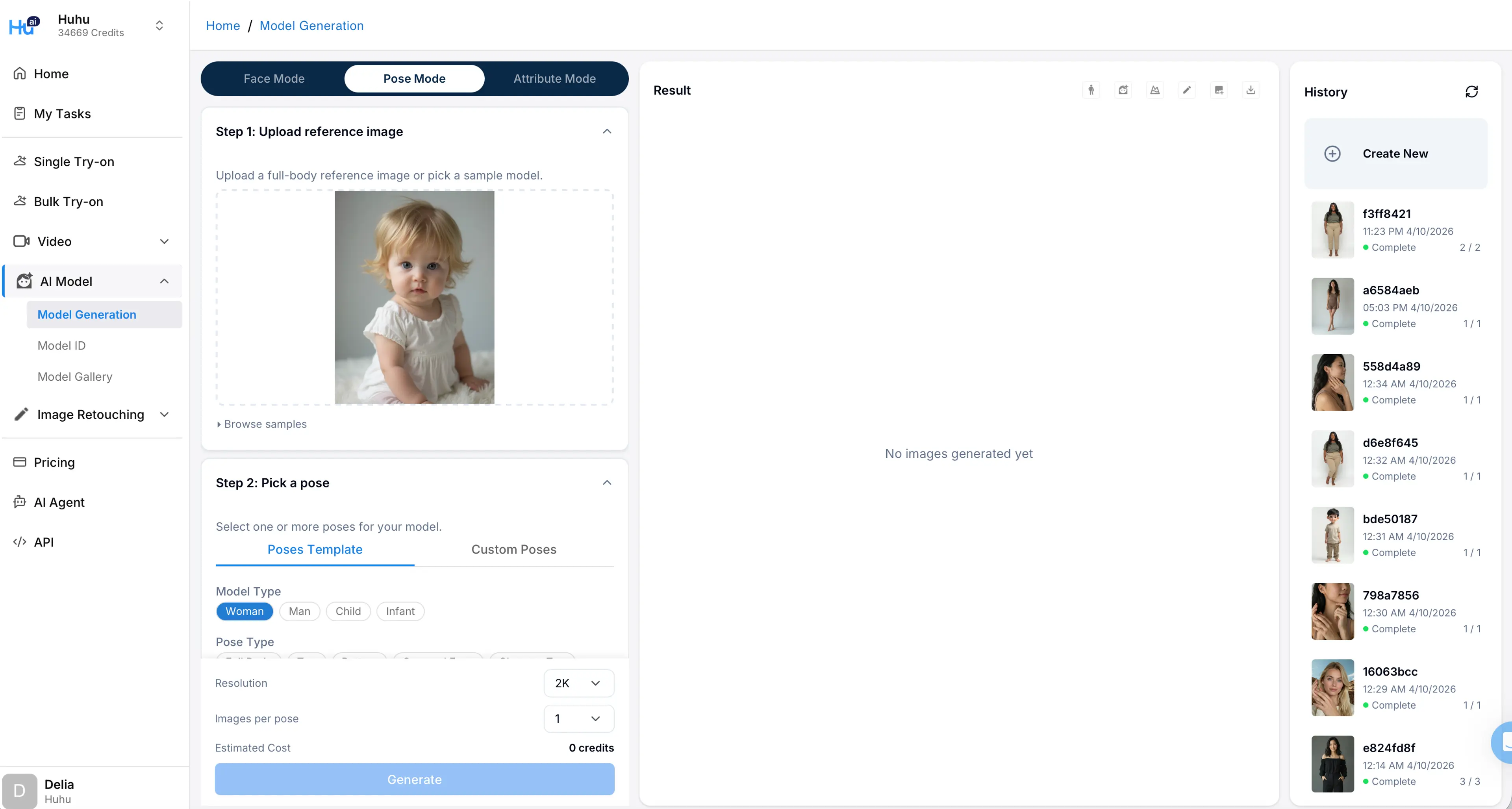
Step 3: Select poses from template
Select poses from template. You can select up to 6 poses at a time, including a random pose.
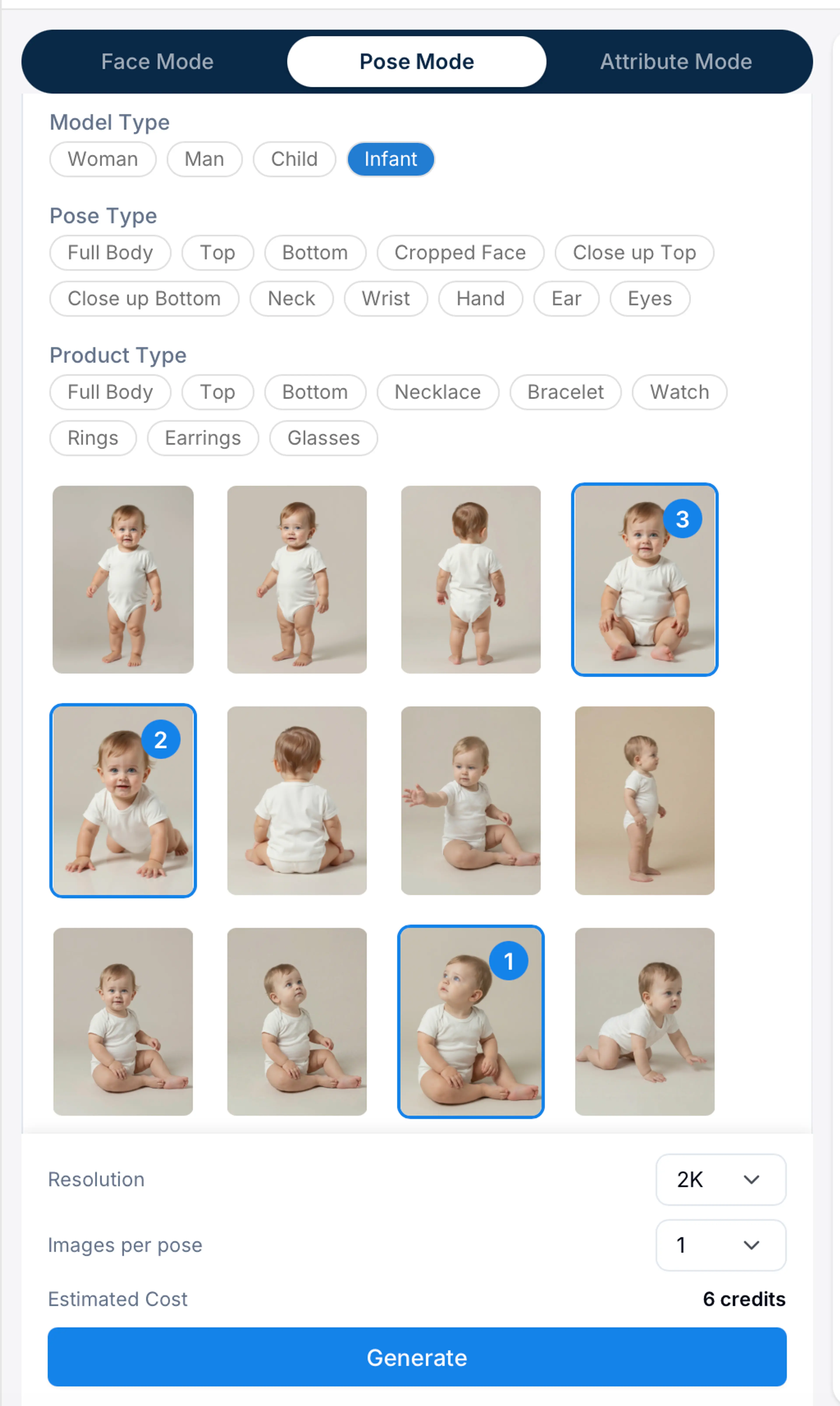
You can also determine how many images per pose you need.
The system offers 4 categories of model poses: Women, Men, Kid and Baby.
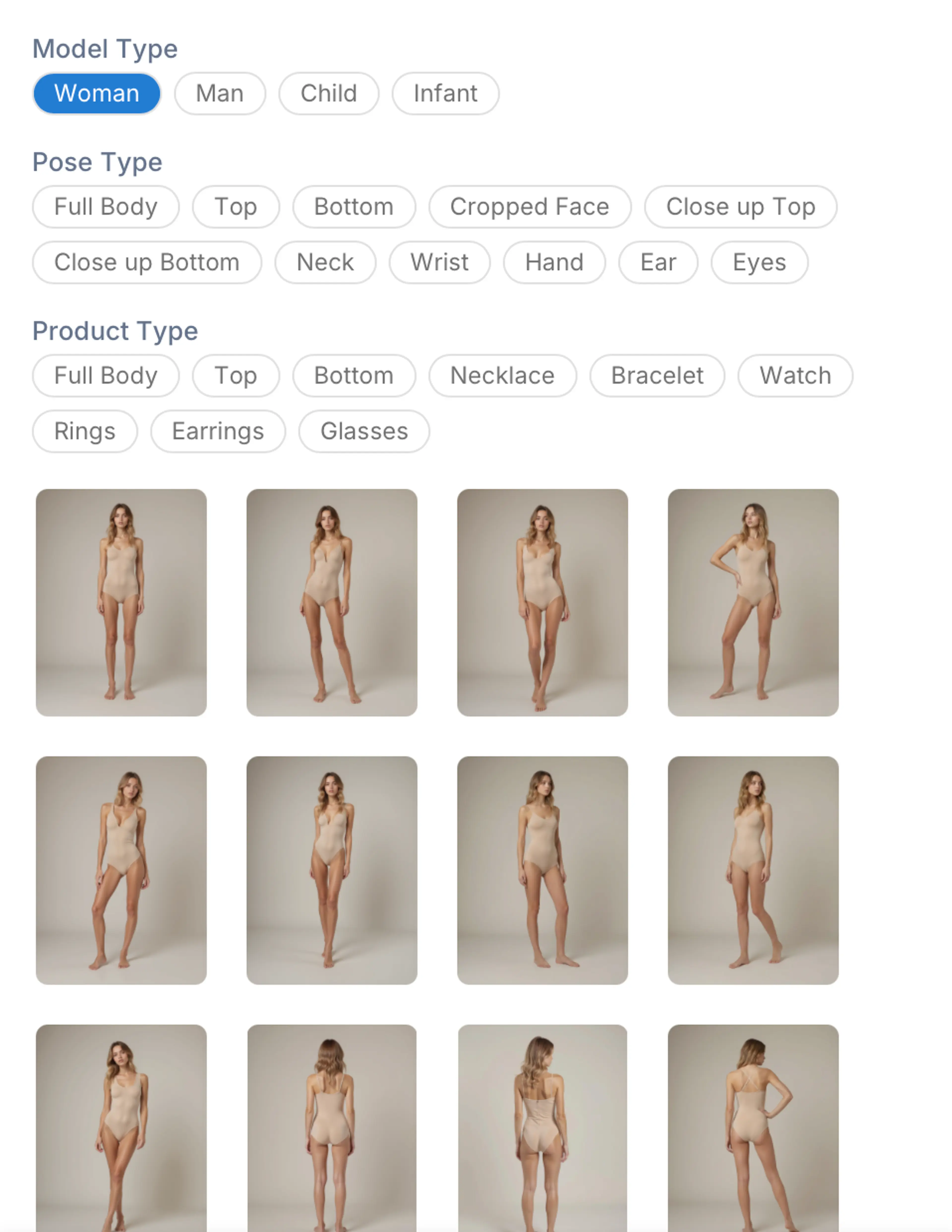
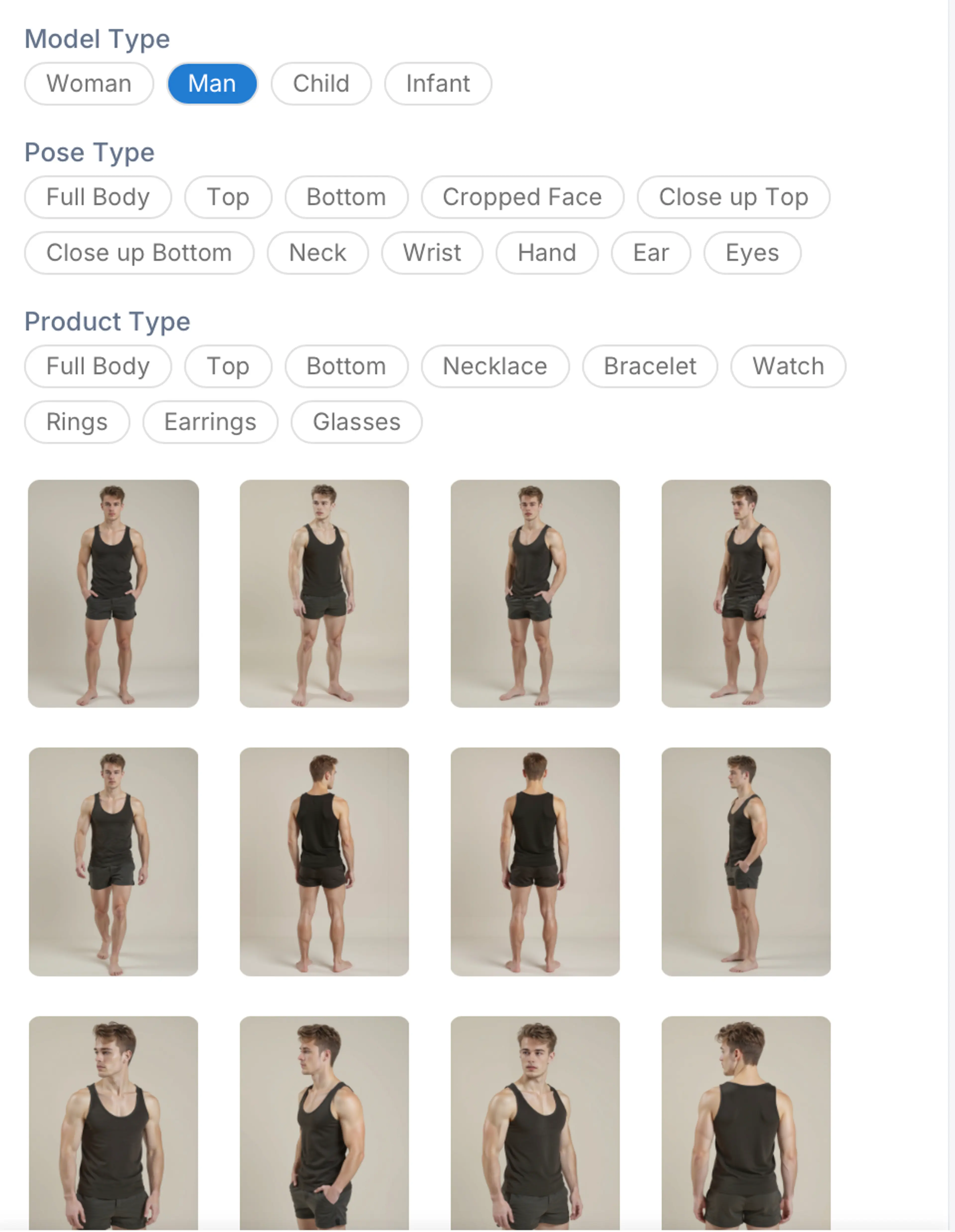
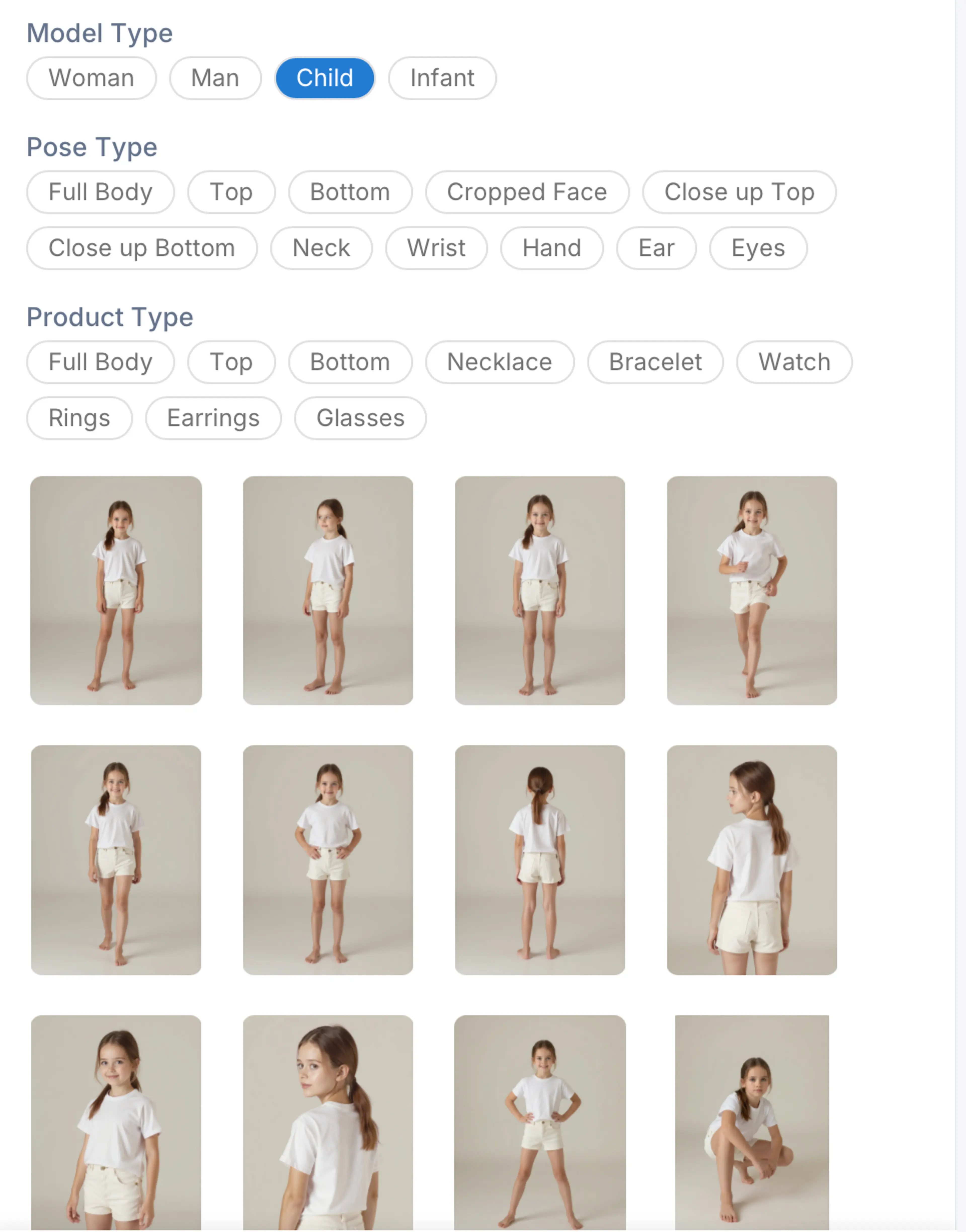
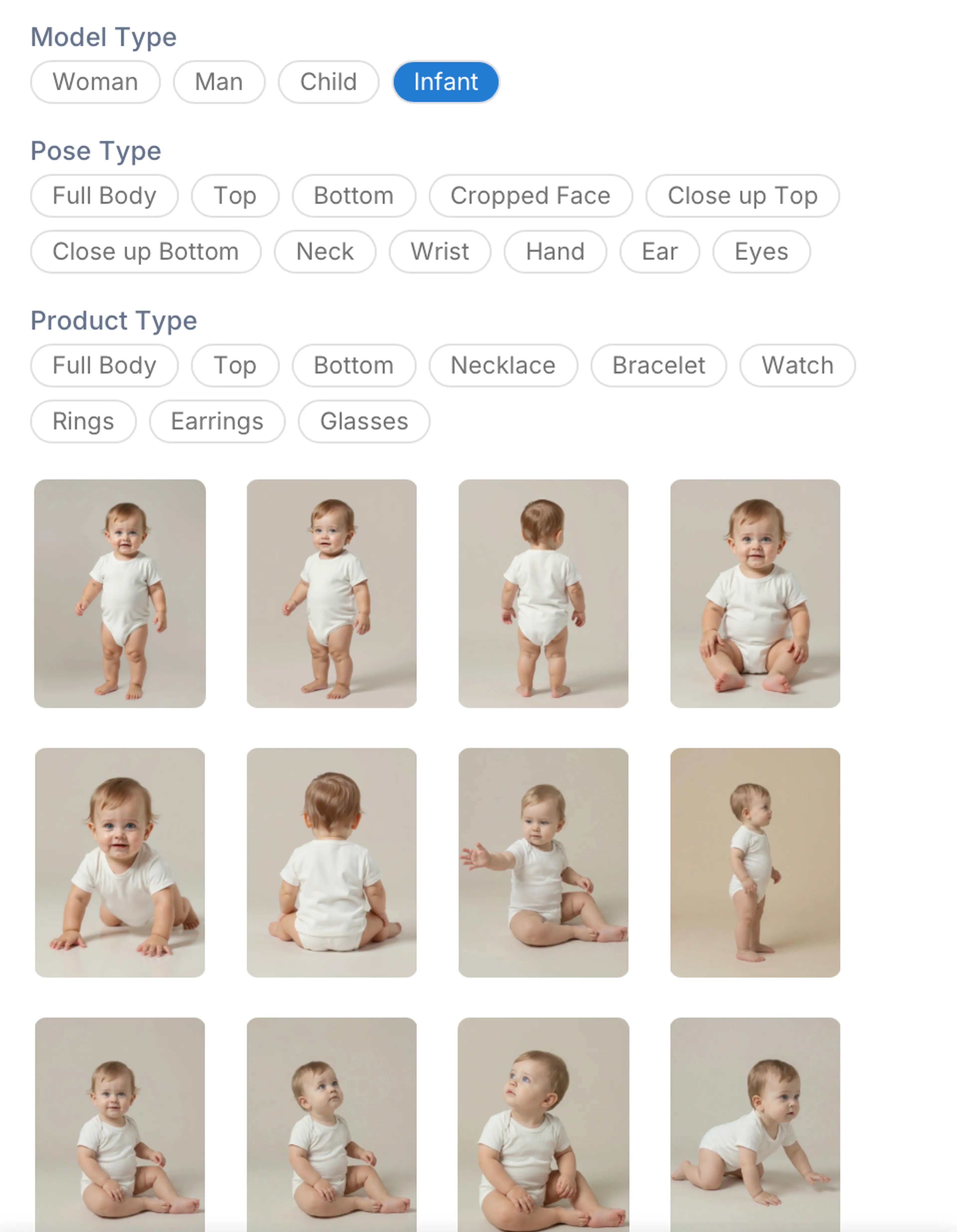
We also offer pose type and product type to help you quickly filter the pose templates that fit your need.
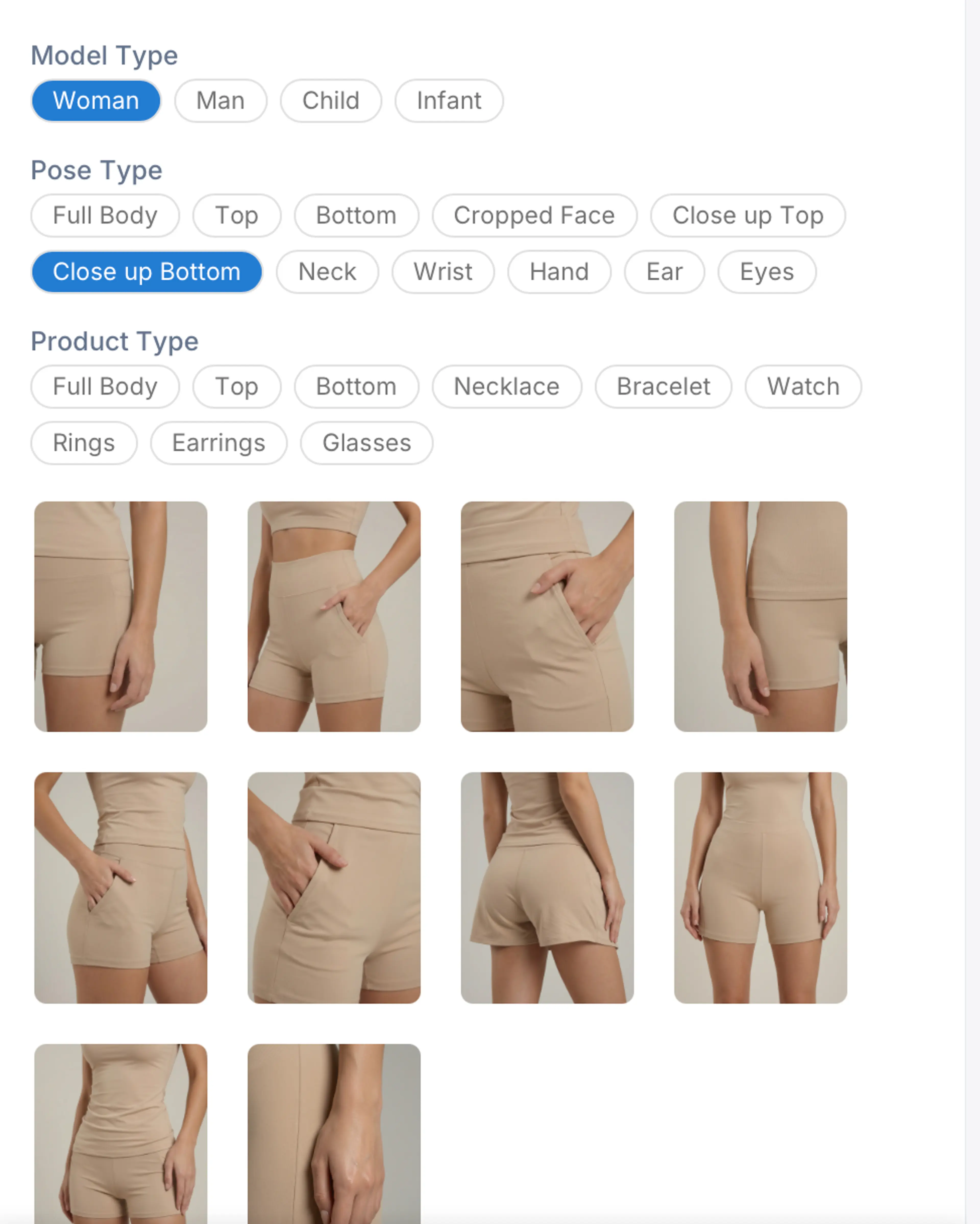
Pro Tip: Create Custom Poses
If you don’t find the poses you want from the the pose templates, you also have the option to customize the pose you want.
Navigate to the Custom Pose tab next to the Post template tab. Click the + icon to enter the custom pose creation flow. You will be prompted to upload the pose reference image you like. The system will automatically detect the pose type that fit your reference image.
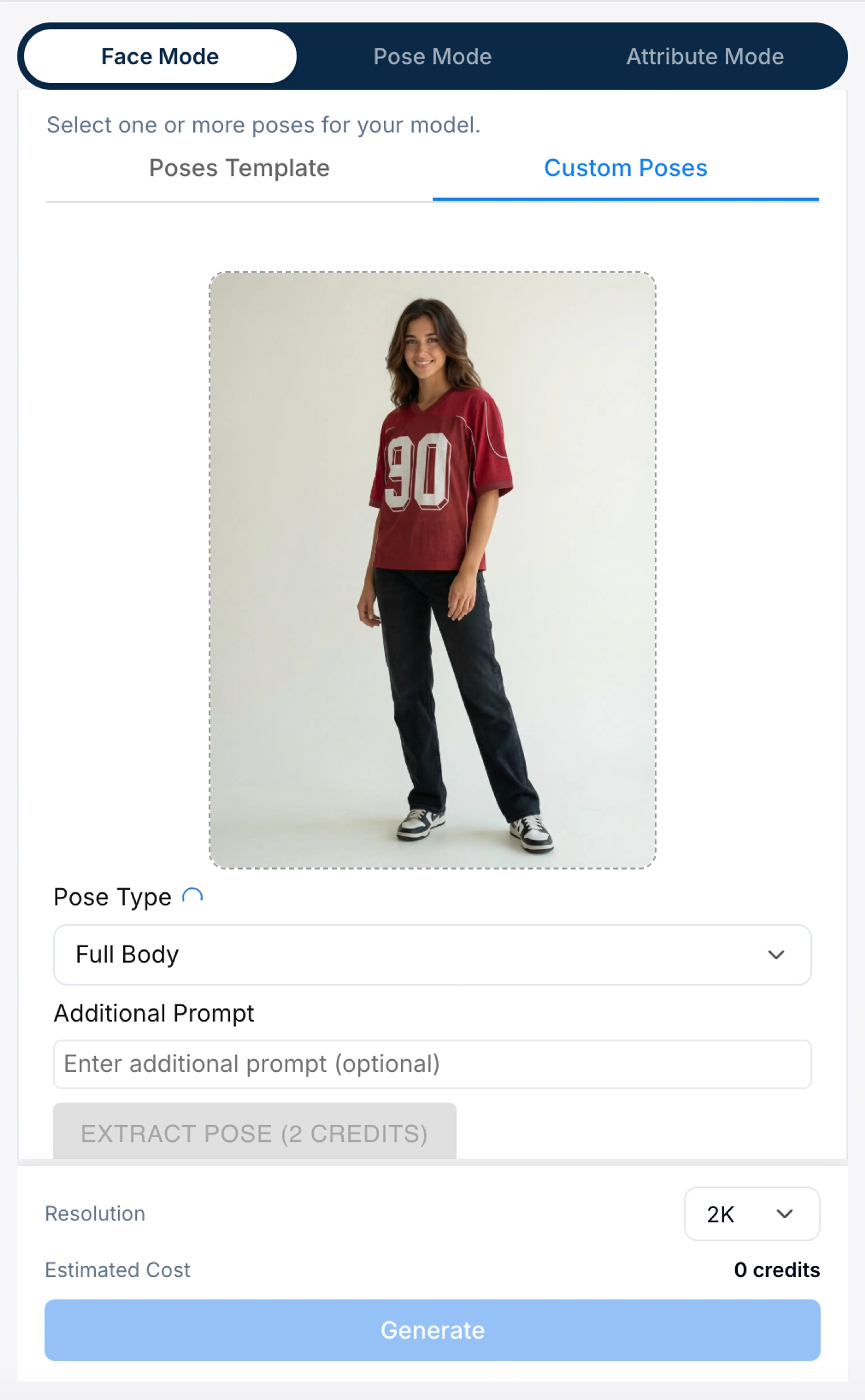
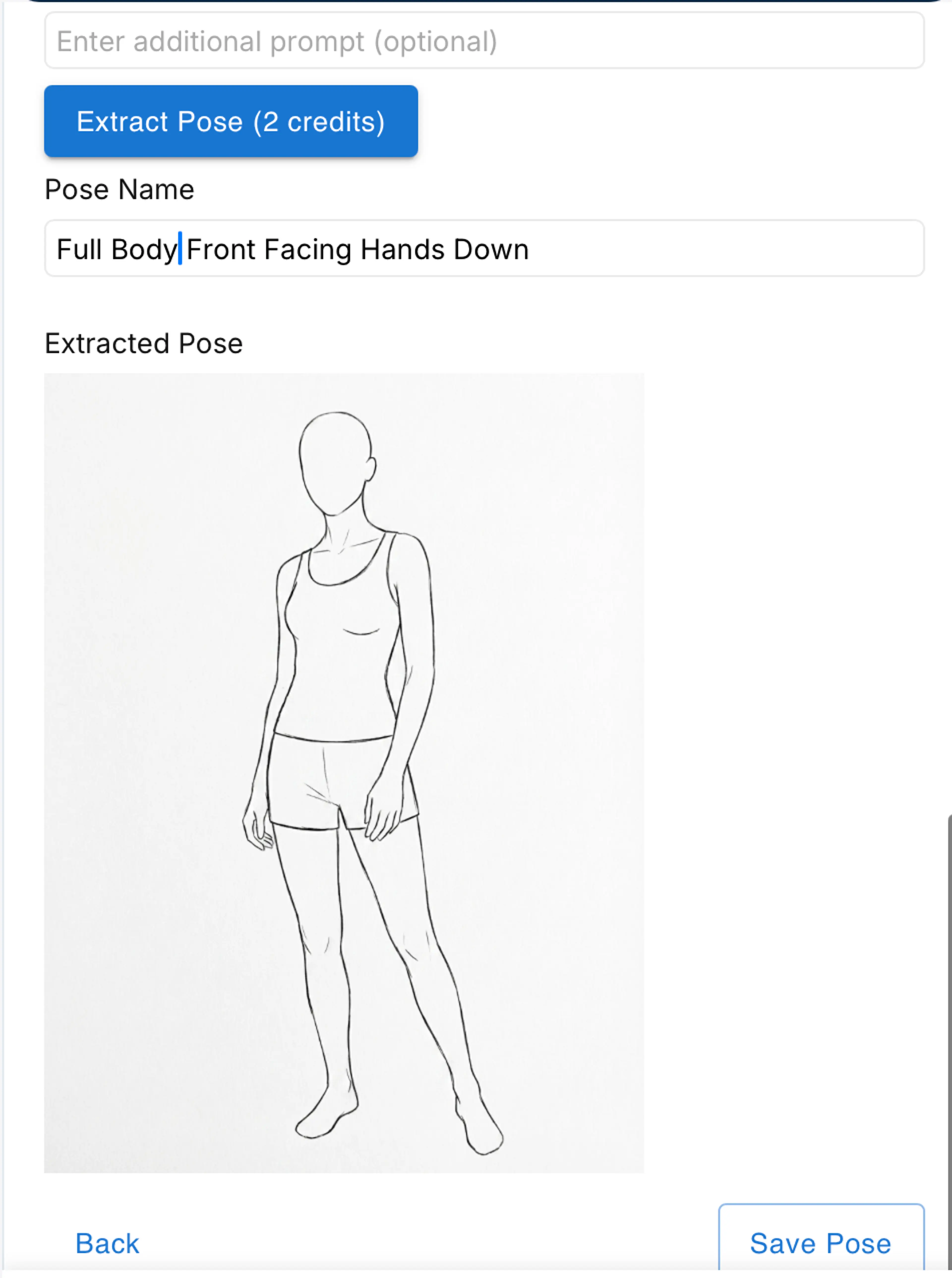
Click the Extract Pose button to extract the pose. This operation will generates a sketch pose that removes all the detail of the figure and only keeps the pose. If you are satisfied with the extracted sketch image, you can save this pose. If you are not satisfied you can extract the pose again. Please note: each extraction will cost 2 credits.
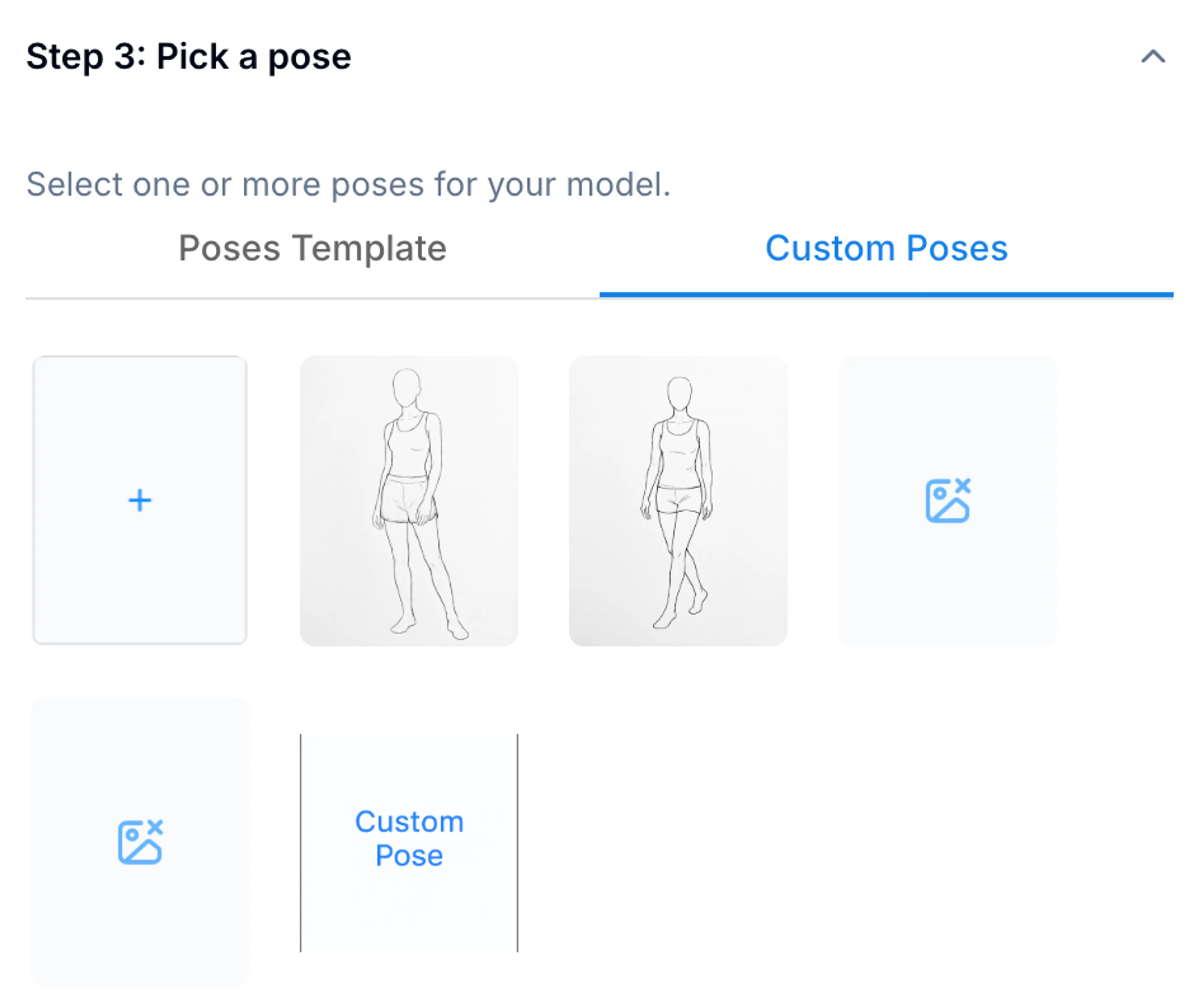
The saved pose will appear under the Custom Poses section. You can choose it as your pose template to generate a similar pose from your reference image.
Step 4: Generate poses
Click the generate button, you’ll see a new card on the job history column with the job status and number of images that has been generated / submitted.
Step 5: Review results
Once the generated results are ready, it will show a completed status on the job card in the History section.
Clicking the job card will reveal the result images on the Result preview panel.
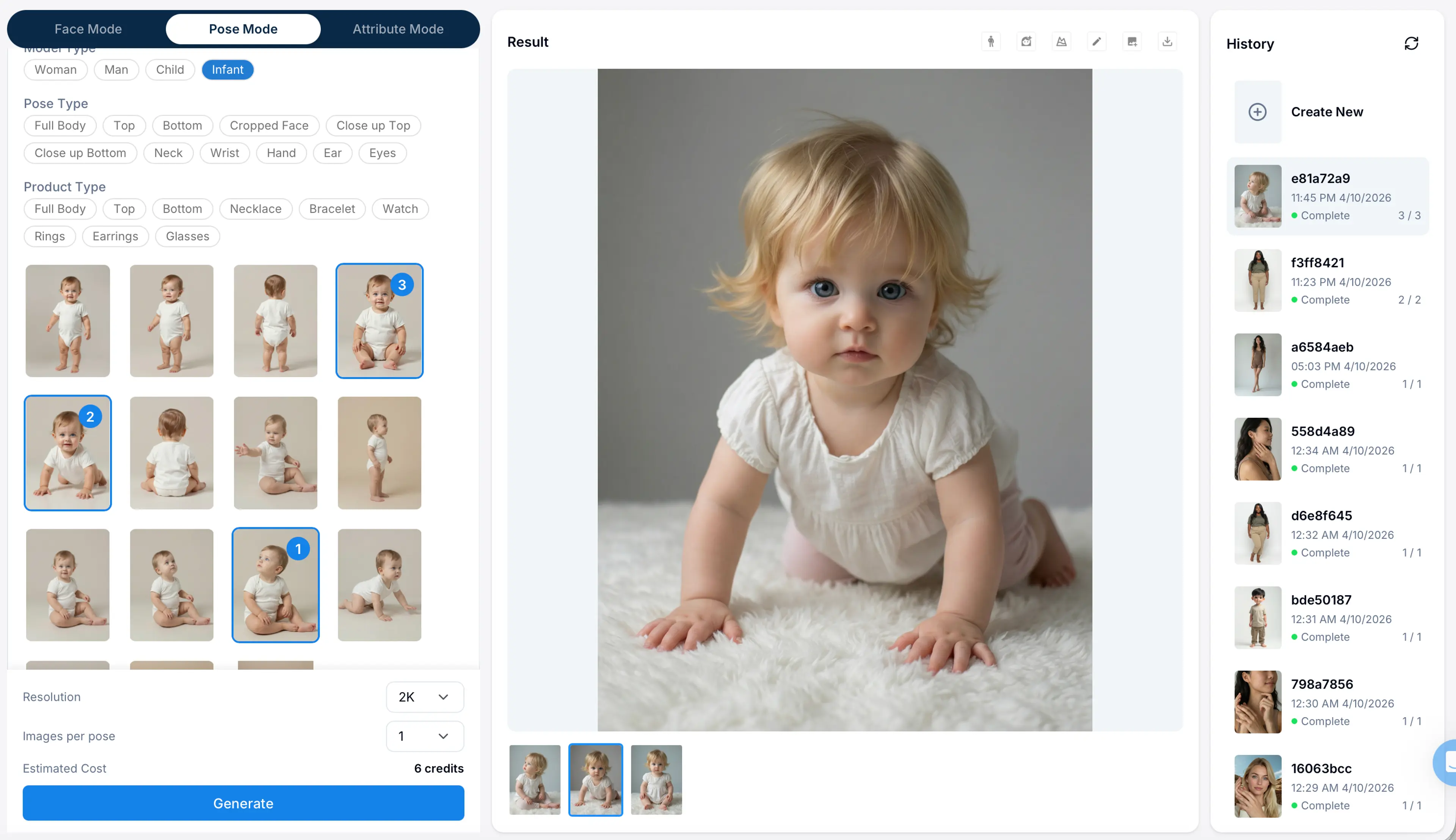
You’ll notice that the model images are pretty consistent in terms of the face, clothes, background and lighting. This is a great way to create consistent model scenes.
Step 6: Edit image
You can use the Editing tool to edit the image if you want to fix some of the areas in the image.
Step 7: Save model images
Once you are satisfied with the image, you can use the Save to Gallery button to save the model images to your photo gallery.
Generate poses from other model generation modes
You can also generate more poses and views of a model image from other generation modes.
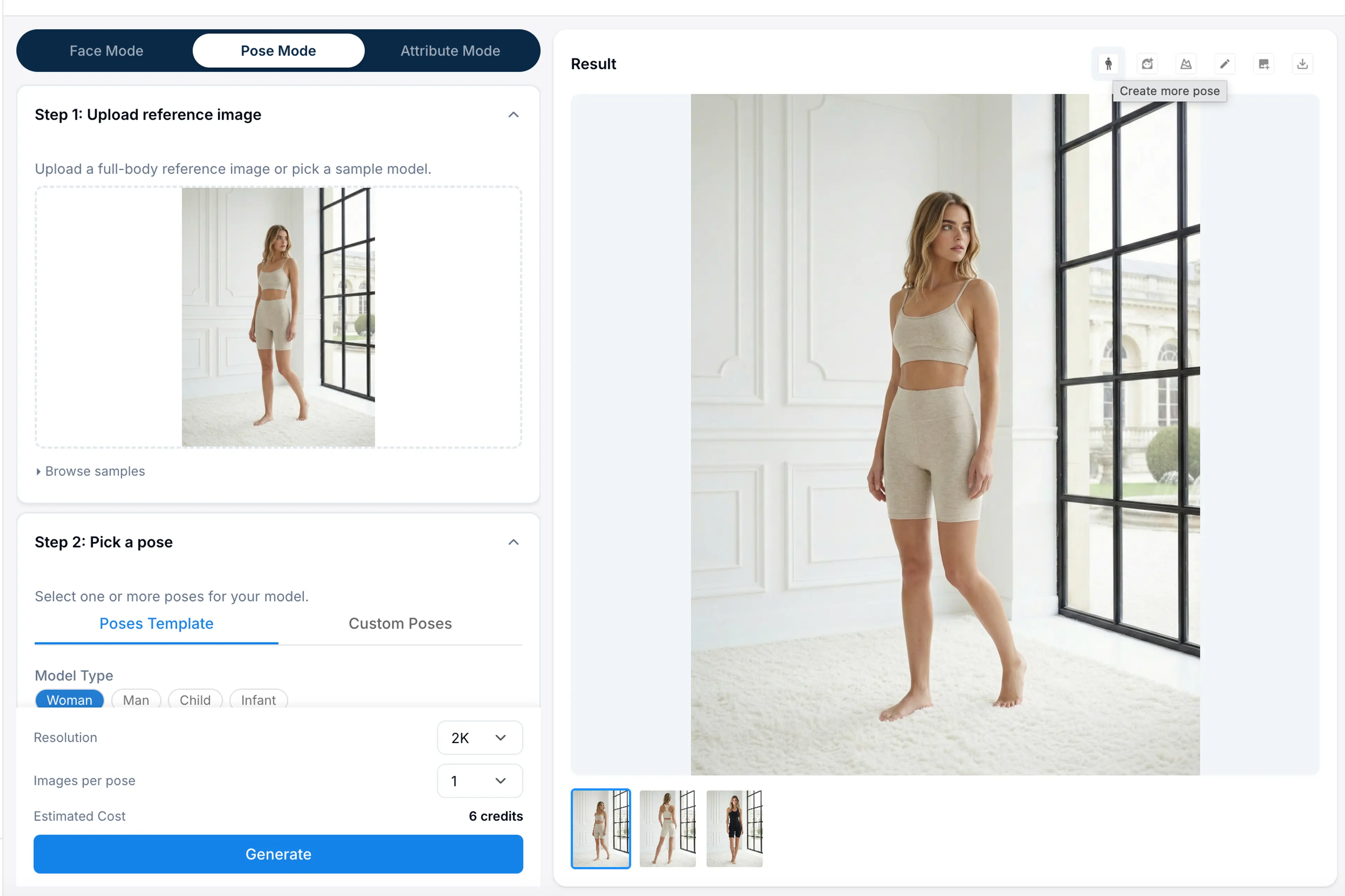
For example, you can click into a Face mode job result, and on the tool bar on top, click the Create more poses button. This operation will enter the selected image into the Pose Mode reference image. Then you can select poses from the templates.
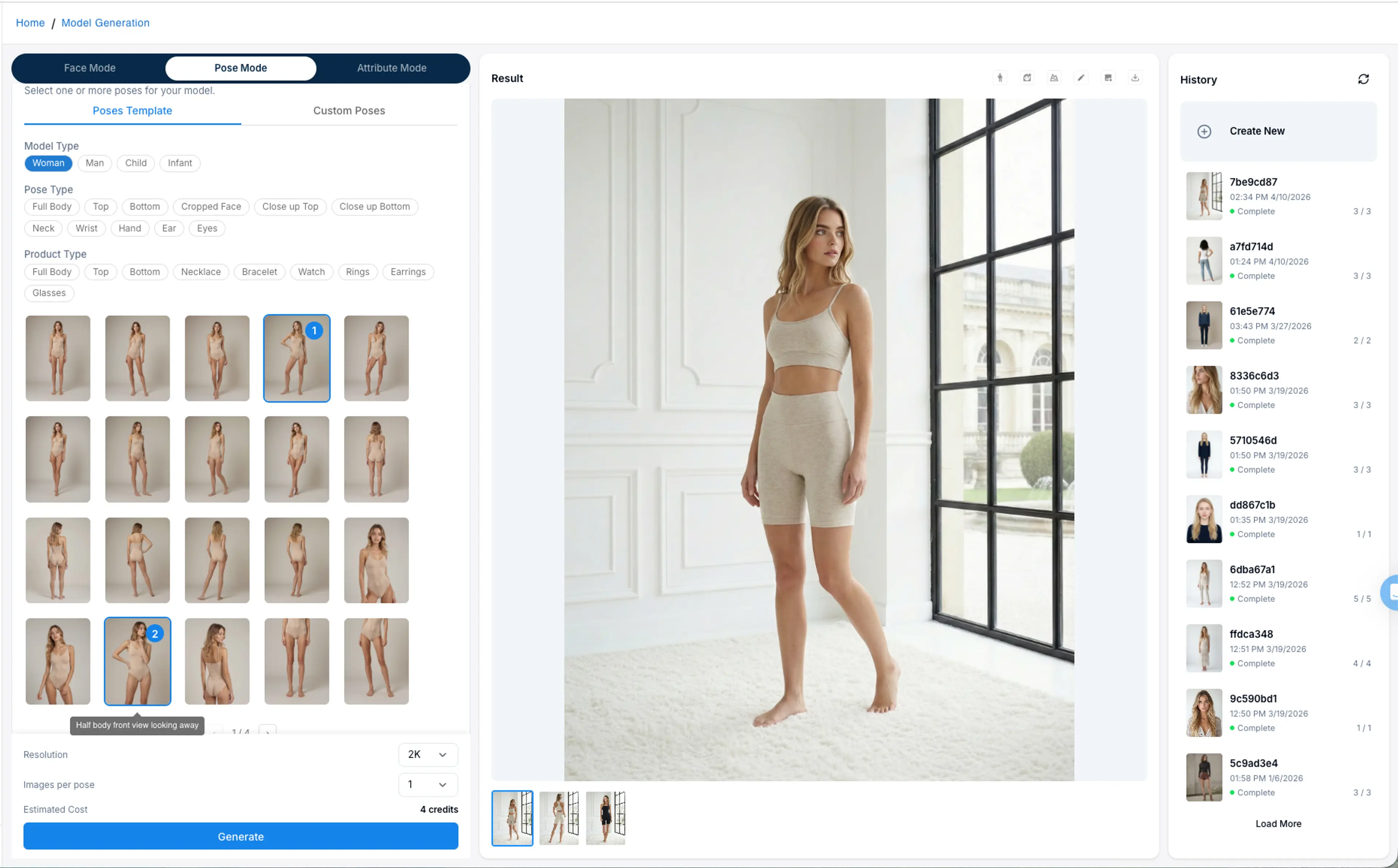
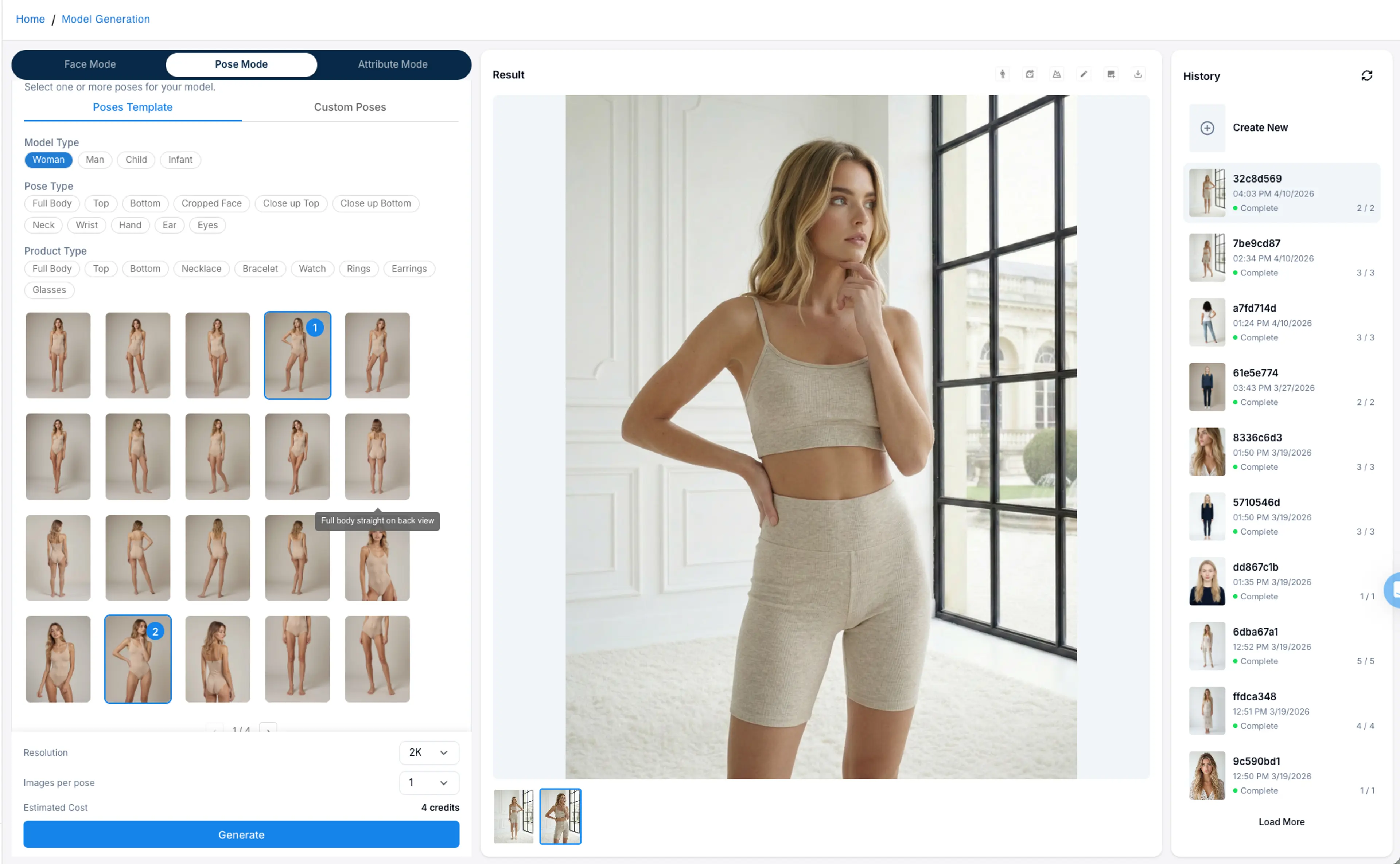
Click the generate button to submit the pose requests, then you’ll be able to get more poses of the same model and scene with the desired poses you selected.
FAQs
What is Virtual Try-On?
HuHu AI’s virtual try-on tool revolutionizes how fashion companies showcase products using advanced AI to create realistic visuals of garments on customizable virtual models with unmatched accuracy and style.
Are the virtual try on photos licensed for commercial use?
Yes, you can use the generated virtual try on shots for commercial purposes. HuHu offers copyright-free preset AI models with different skin tones, ages, and features.
Please ensure that any images you upload (e.g., product photos) do not infringe third-party rights. We also recommend checking local laws before commercial use, as users are fully responsible for content compliance.
What are the advantages of AI virtual try-on compared to traditional photoshoots?
AI virtual try-on significantly lowers production costs, delivers results in minutes, and allows full control over model attributes like pose, body type, and styling.
How can I create my own AI models for virtual try on?
You can fully customize your AI fashion models using our model generator feature. Choose from a wide range of options including body shape, skin tone, hairstyle, facial features, and more. You can also upload a reference photo to generate an AI model with a similar look and style.
Related Tutorials
How to Generate Model Image with Specific Pose and Background
Learn how to create a reference model image by compositing background and foreground layers for use as a style reference in HuHu AI model generation.
How to Generate Model Images with Attributes
Learn how to generate AI model images using attribute controls in HuHu AI Studio, from selecting attributes to fine-tuning prompts and advanced settings.
How to Generate Model Images with Face Reference
Learn how to generate AI model images using face references in HuHu AI Studio, including uploading faces, adding background references, and customizing attributes.