
How to Generate Model Images with Face Reference
Step 1: Enter Model Generation > Face Mode
Select the Face tab on the model generation section.
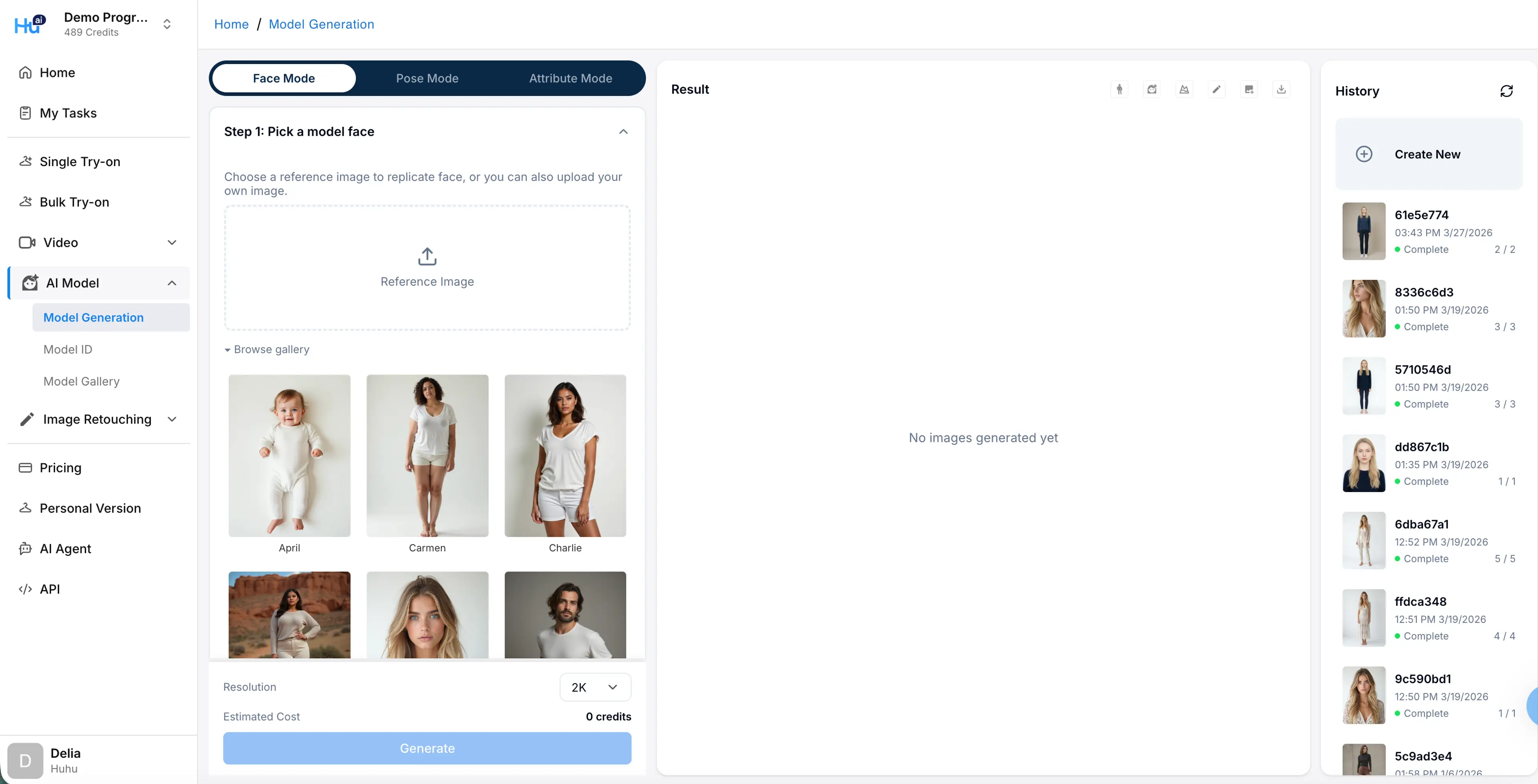
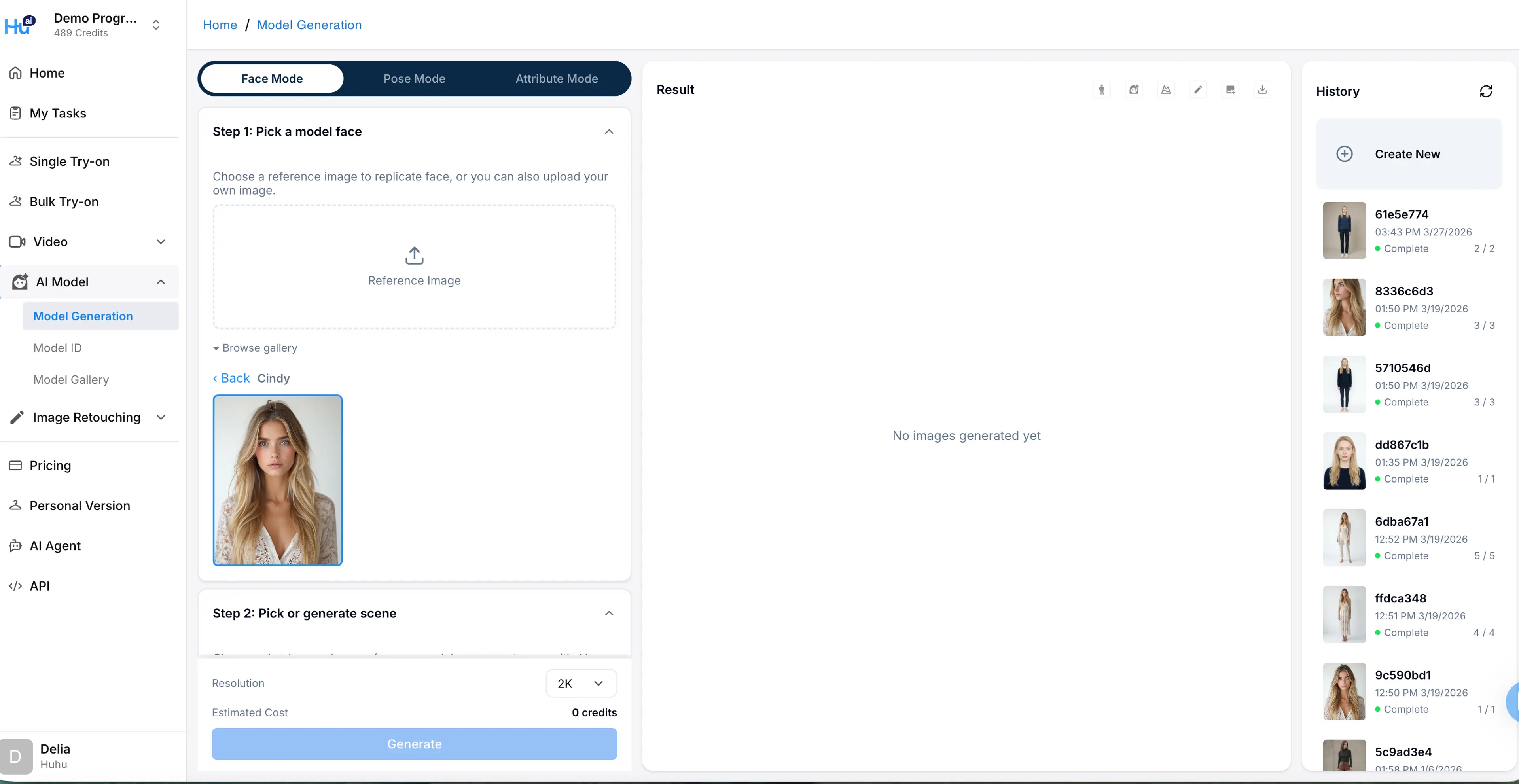
Step 2: Select Face Reference
Pick a face from the model ID list or upload your own. Please note: if you are using a real person’s face, you need to get their permissions to use their identity for training purposes.
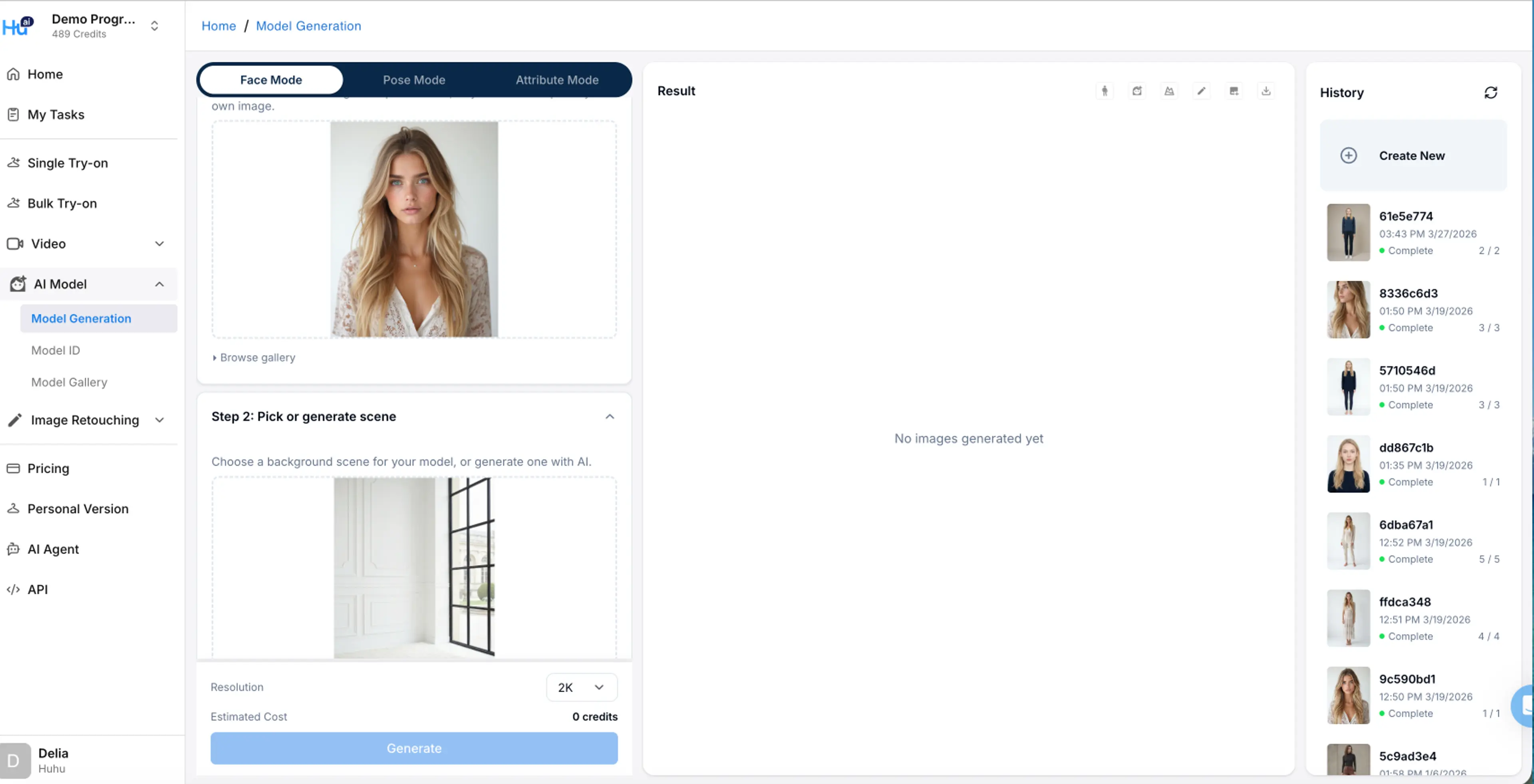
Step 3 (Optional): Select Scene
If you have specific background you’d like to use for the model image, upload it to the Scene Reference Image section or select from the sample reference.
Step 4 : Select Pose
Select pose from the pose gallery
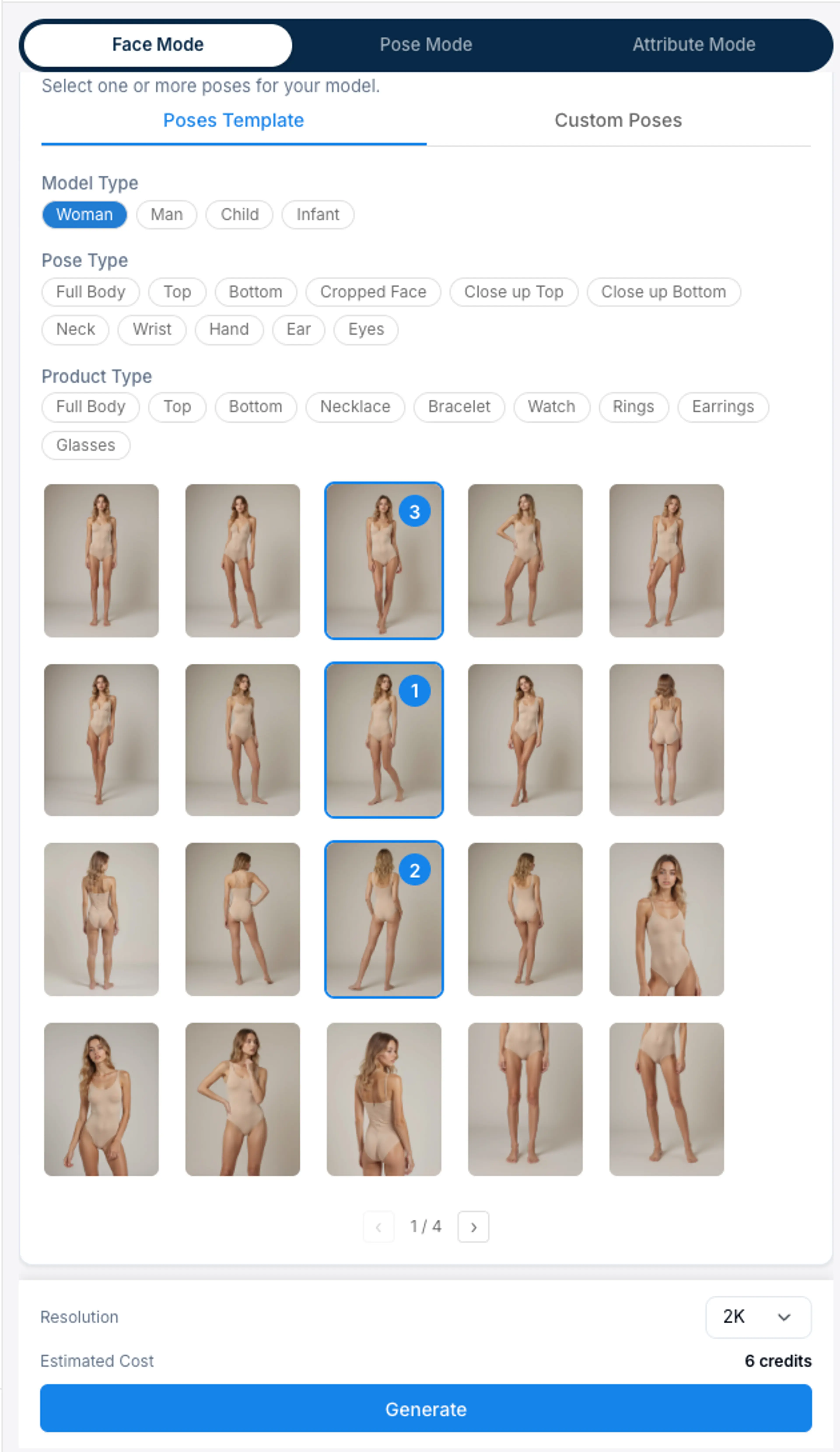
Step 5: Select Resolution and Start Generation
You have the option to select between 2K or 4K resolution. The model images by default will be generated in 3:4 ratio. Your task will also enter as a job card in the History section on the right. You can exit this page and come back to click the job card when the results are completed.
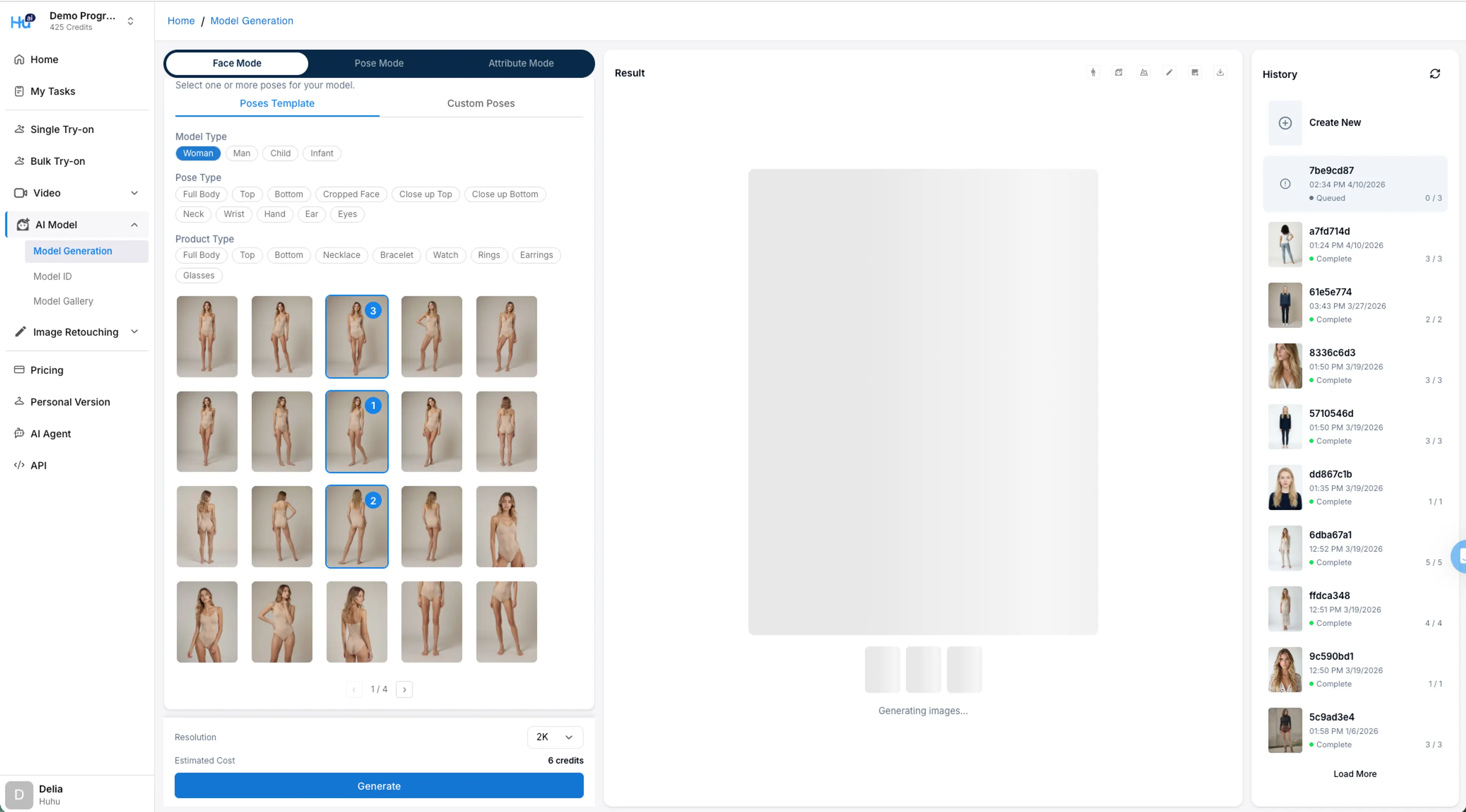
Step 6: Wait for Generation Result
When your generation results are completed, they’ll show on the preview panel. You can continue generating more pose of the image, using the image as face or scene reference, or editing the image.
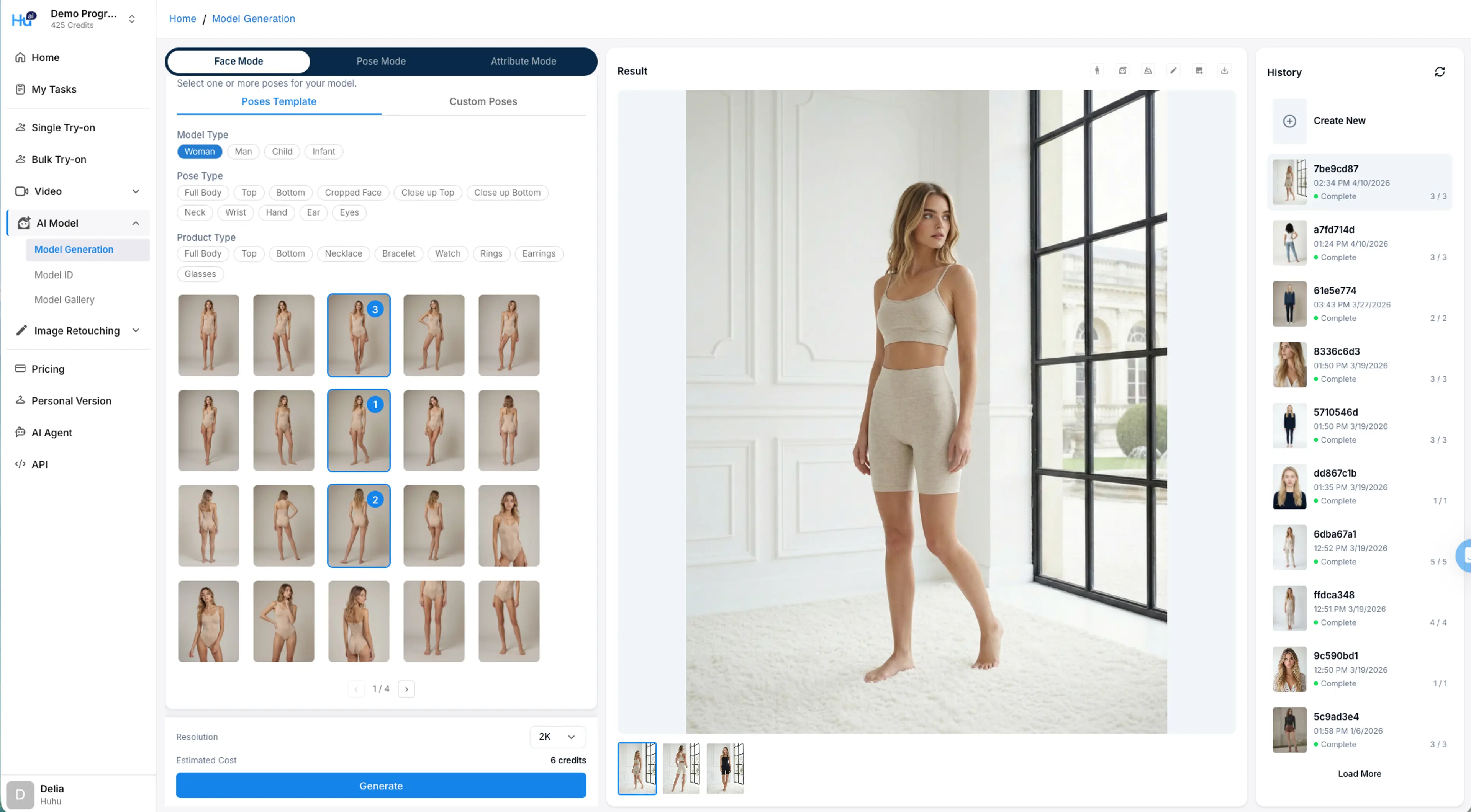
Step 7: Save or Download the image
Once you are satisfied with the image, you can save it to the model gallery or download the image.
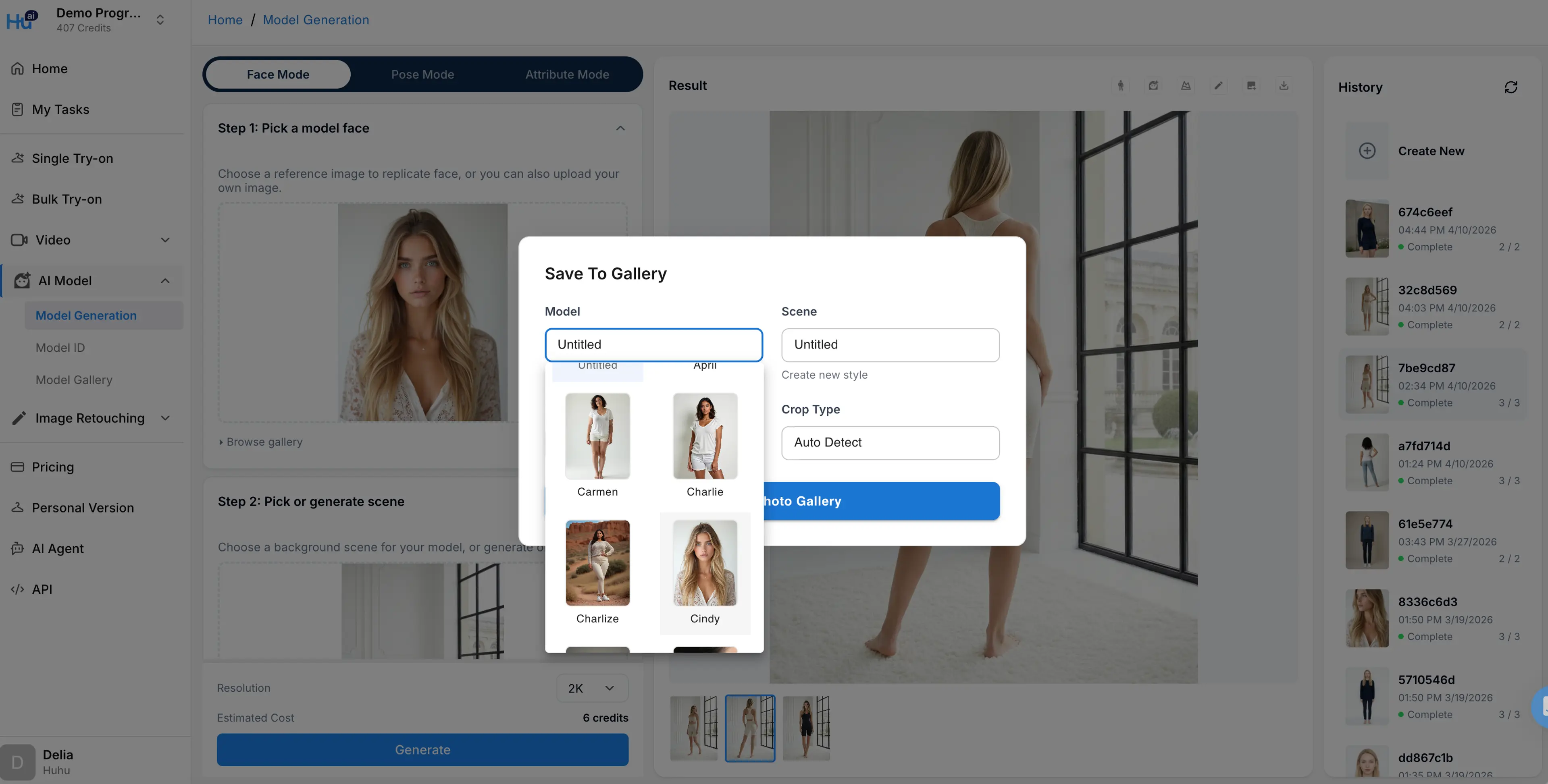
If you don’t find the model id or scene id you need, you can click the create new model id or create new scene link to create the new model / scene ID.
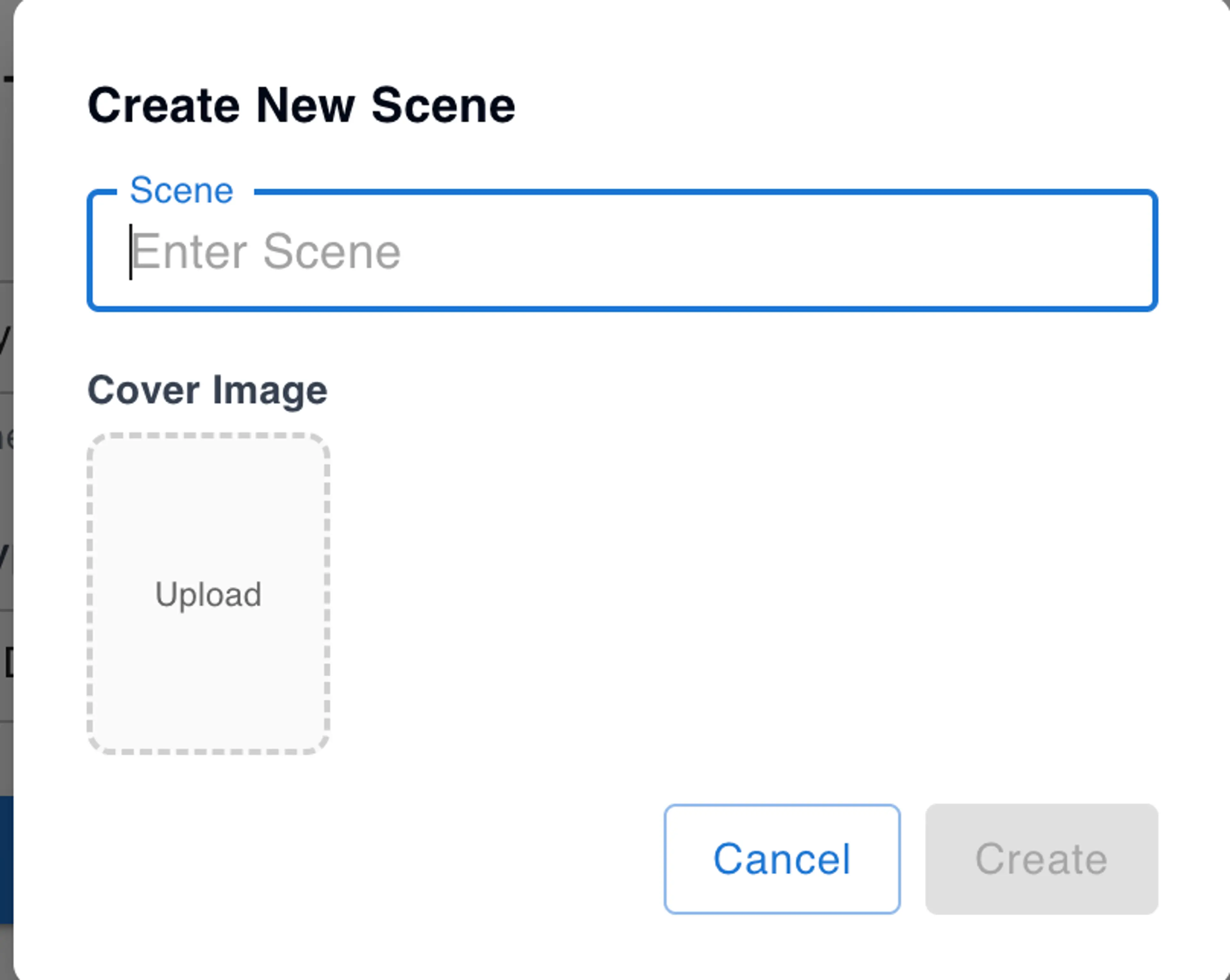
You can also download the image to your local drive to use elsewhere.
FAQs
What is Virtual Try-On?
HuHu AI’s virtual try-on tool revolutionizes the way fashion companies showcase their products. Using advanced AI, this tool creates realistic visuals of garments on customizable virtual models.
Are the virtual try on photos licensed for commercial use?
Yes, you can use the generated virtual try on shots for commercial purposes. HuHu offers a variety of preset AI models with different skin tones, ages, and features — all 100% copyright-free.
What are the advantages of AI virtual try-on compared to traditional photoshoots?
AI virtual try-on significantly lowers production costs, delivers results in minutes, and allows full control over model attributes like pose, body type, and styling.
How can I create my own AI models for virtual try on?
You can fully customize your AI fashion models using our model generator feature. Choose from a wide range of options including body shape, skin tone, hairstyle, facial features, and more.
Related Tutorials
How to Generate Model Image with Specific Pose and Background
Learn how to create a reference model image by compositing background and foreground layers for use as a style reference in HuHu AI model generation.
How to Generate Model Images with Attributes
Learn how to generate AI model images using attribute controls in HuHu AI Studio, from selecting attributes to fine-tuning prompts and advanced settings.
How to Generate Model Images with Style Reference
Learn how to generate model images using style references in HuHu AI Studio, including similarity levels, LoRA model selection, and auto-generated prompts.