How to Generate Model Images with Attributes
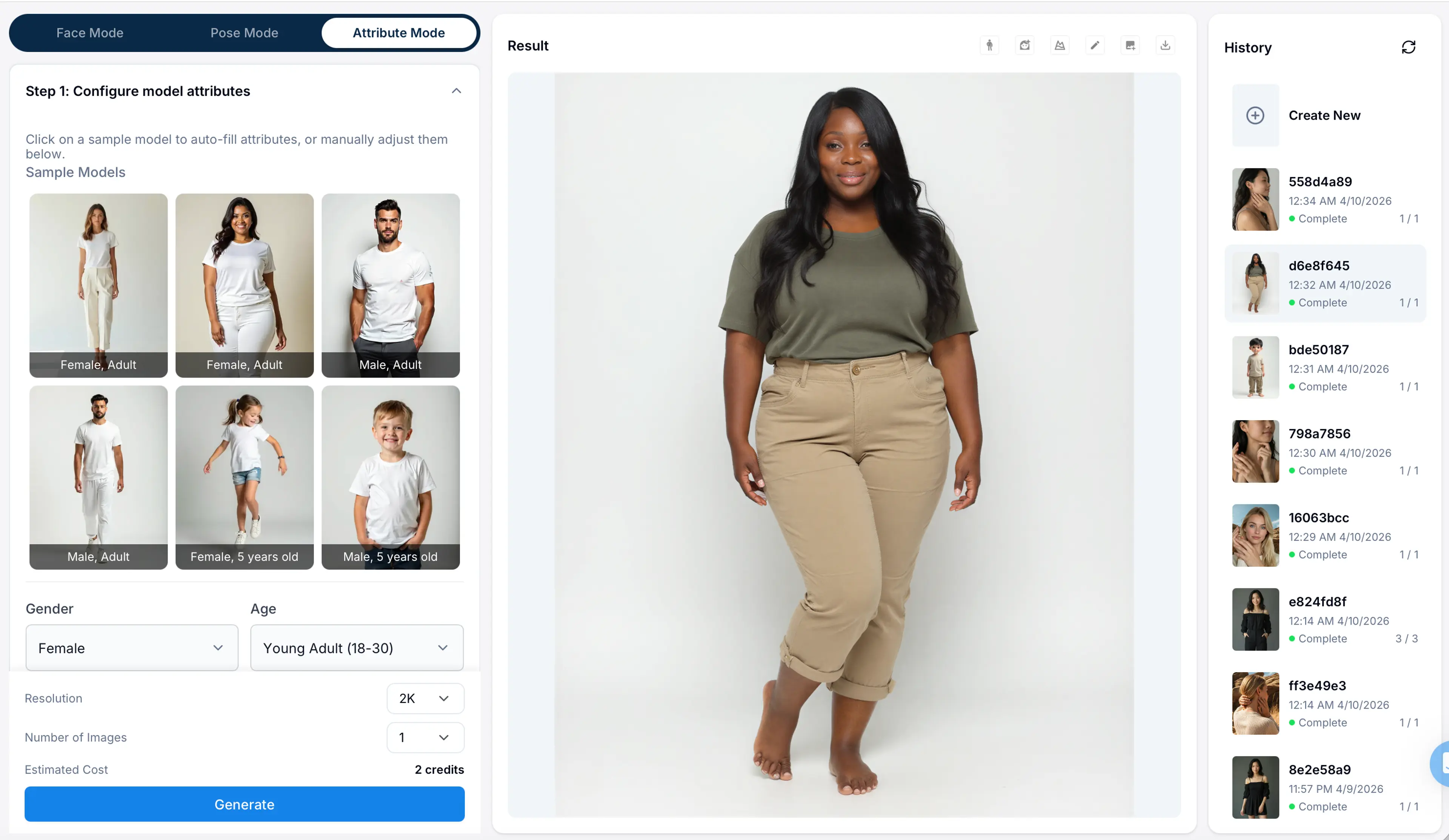
Step 1: Enter Model Generation > Attribute Mode
Select the Attribute tab.
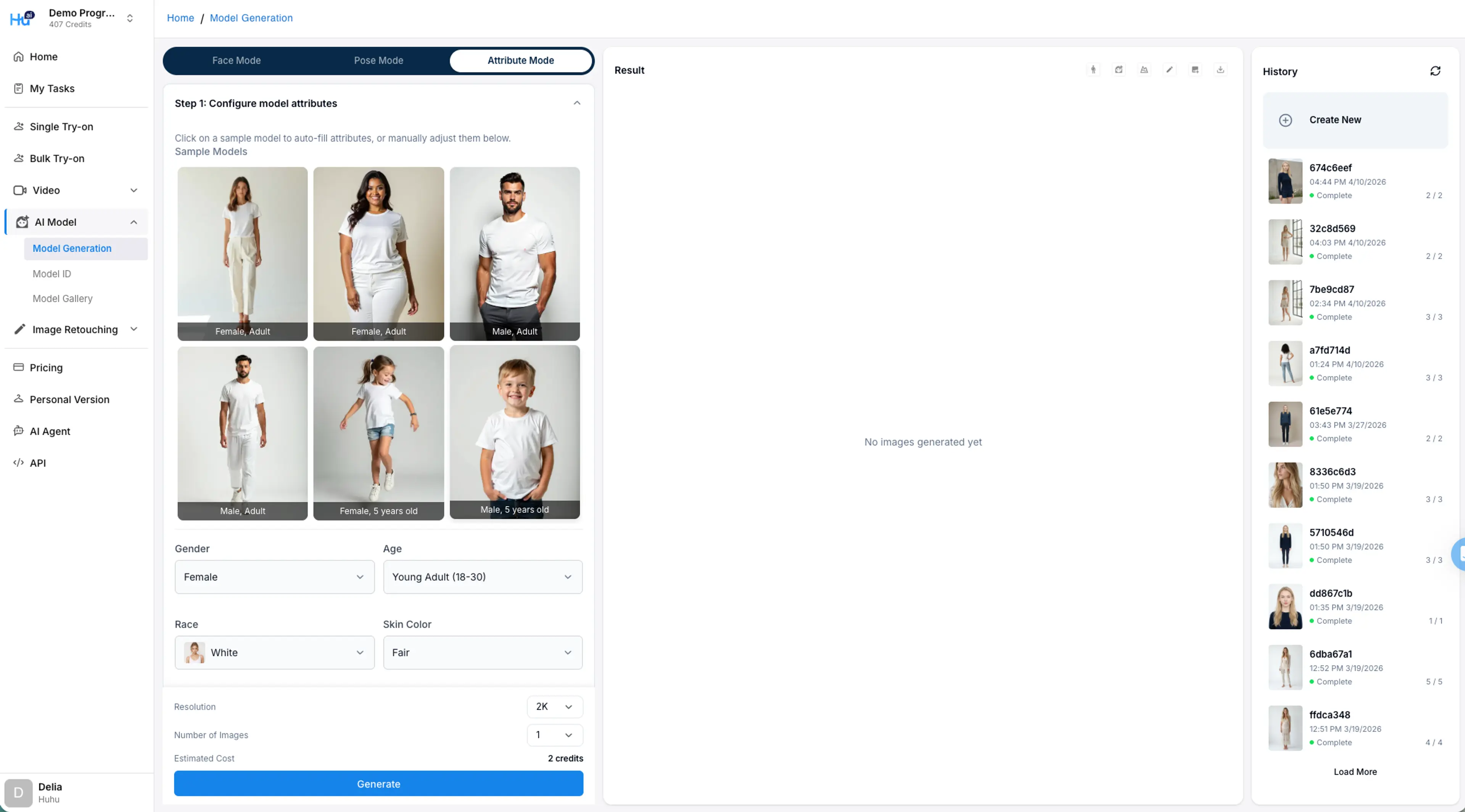
Step 2: Select Sample Prompt Template
Pick a sample model from the list to quickly fill in some default values to the attribute fields.
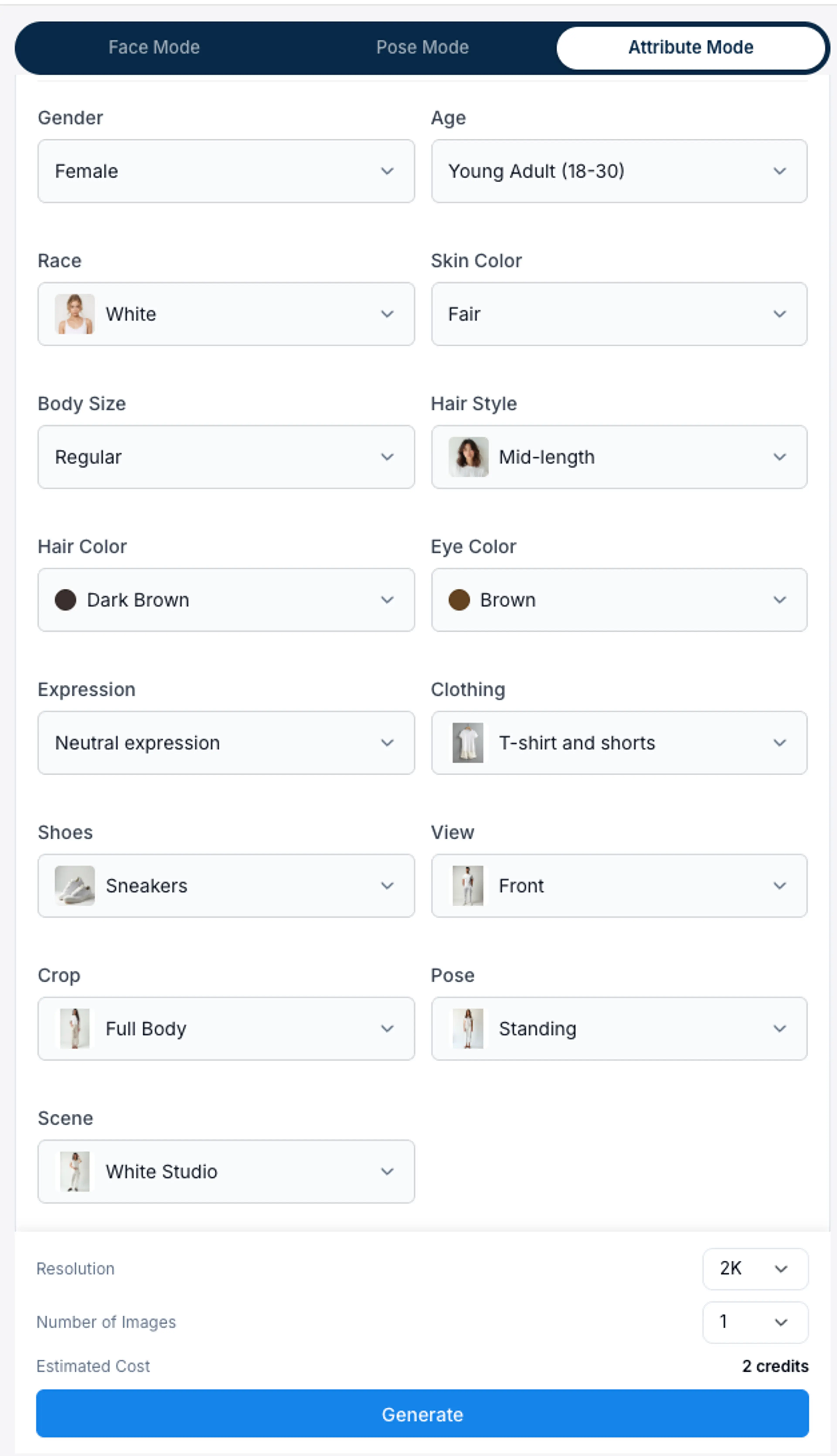
Step 3: Modify Attributes
Modify the model attribute fields based on your preference.
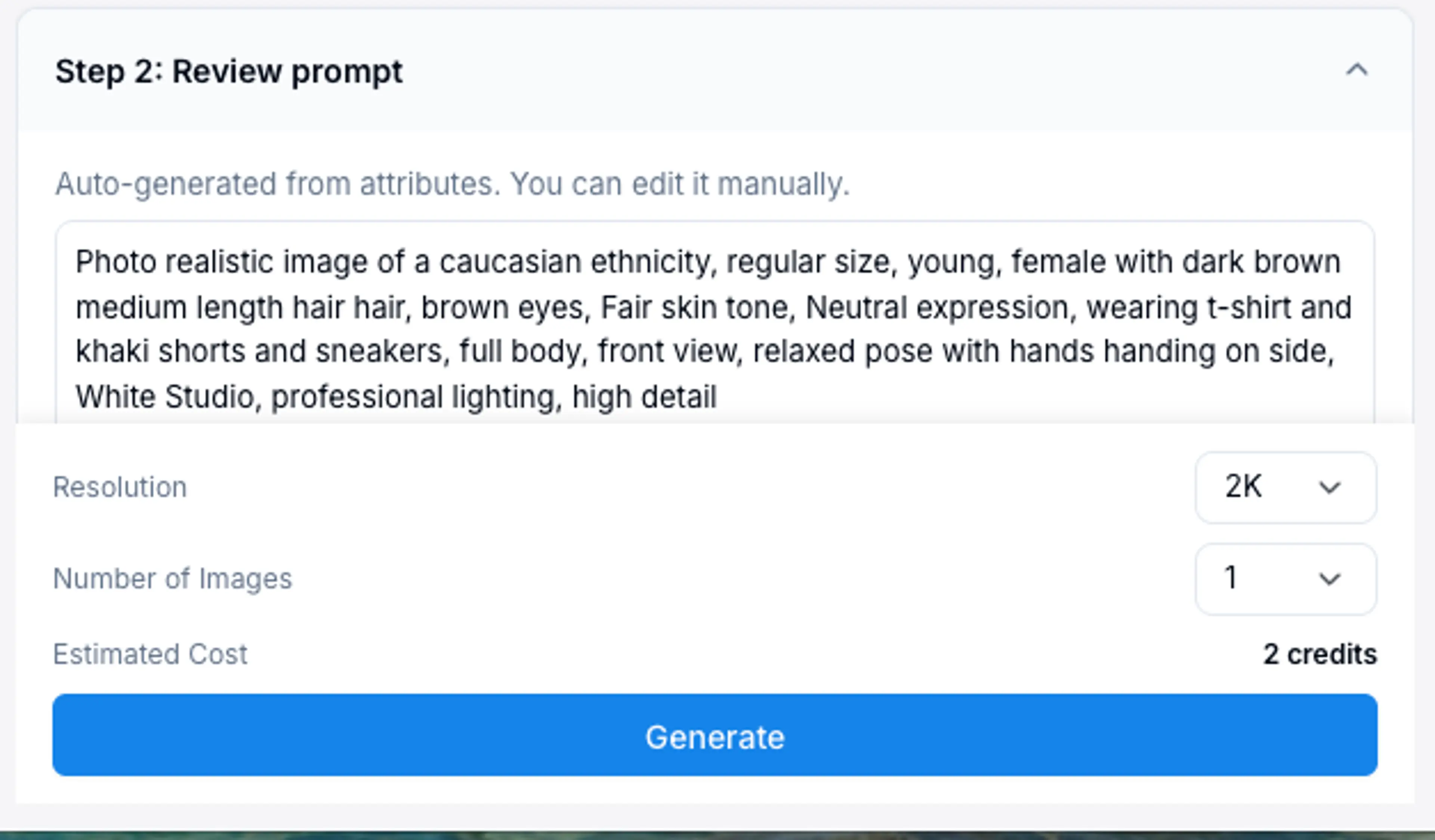
Step 4: Confirm/Adjust Prompts
The selected attribute values will automatically be entered into the prompt box in the Advanced settings. If you don’t find the option you like from the values options in the fields, you can directly modify the prompts to specify. You can also change the resolution of the output images and the number of output images.
Please note: The model images for try on needs to be in 3:4 ratio.
Step 5: Submit Request
Once you are done with prompt editing, select the resolution and number of images per job, then click the generate button to submit the request.
Step 6: Wait for Results
The submitted task will be inserted to the top of the job history on the left. When it’s in queue or in progress the status will be in orange. Use the refresh button to refresh the tasks and check the status. When it turns green, the task has been completed.
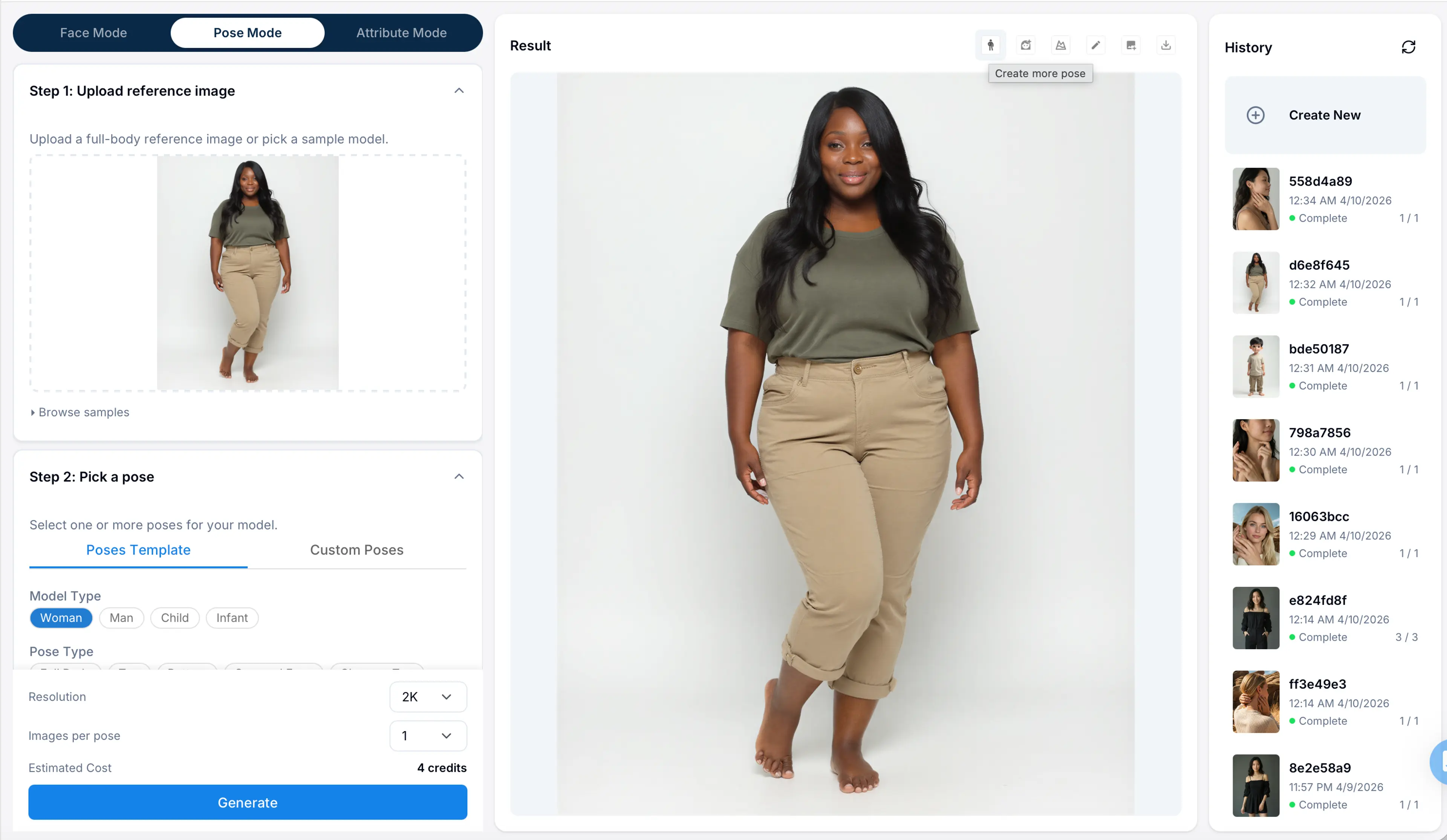
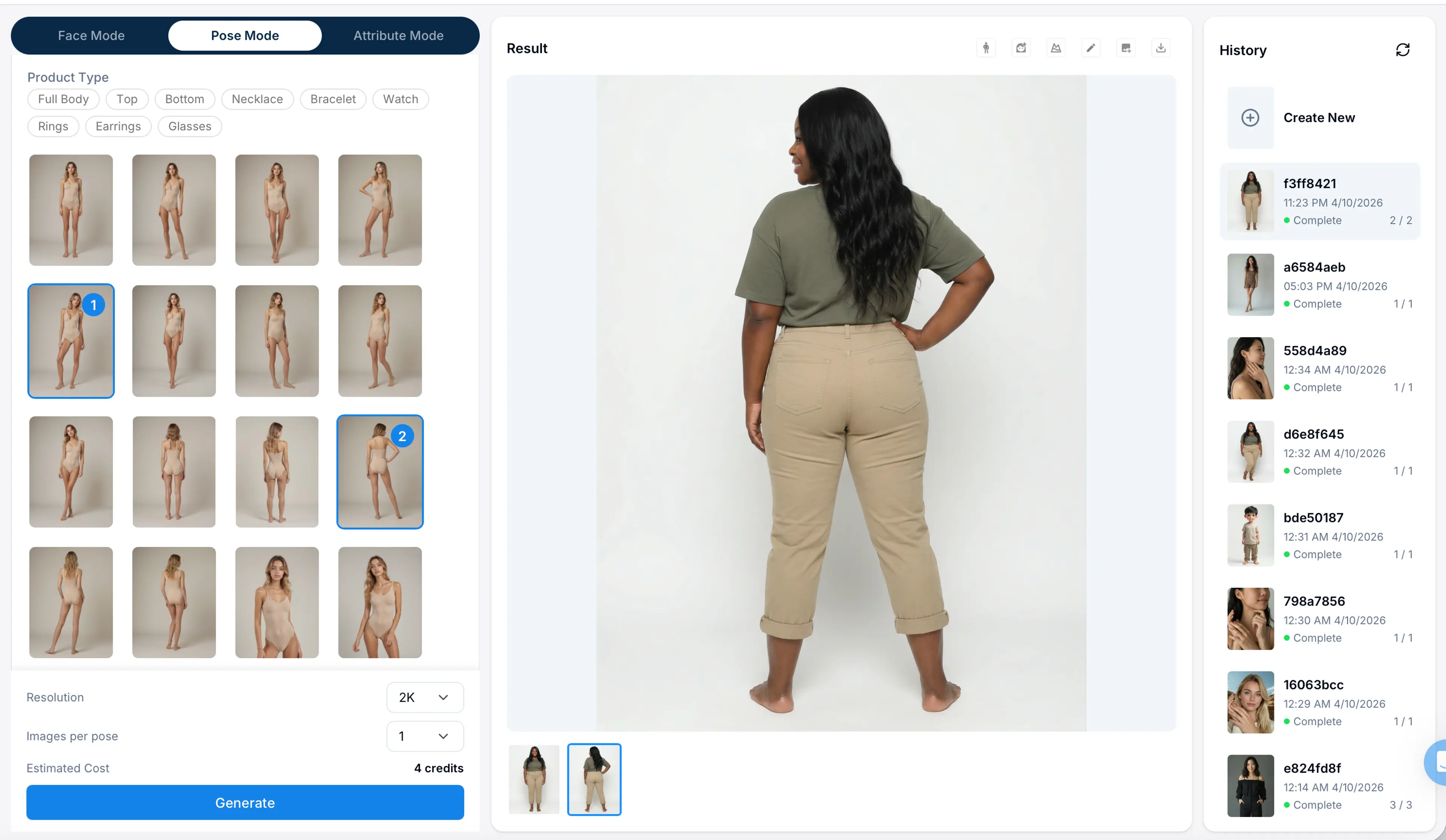
You can continue creating more poses from the model image, or use this model as face reference or background scene reference.
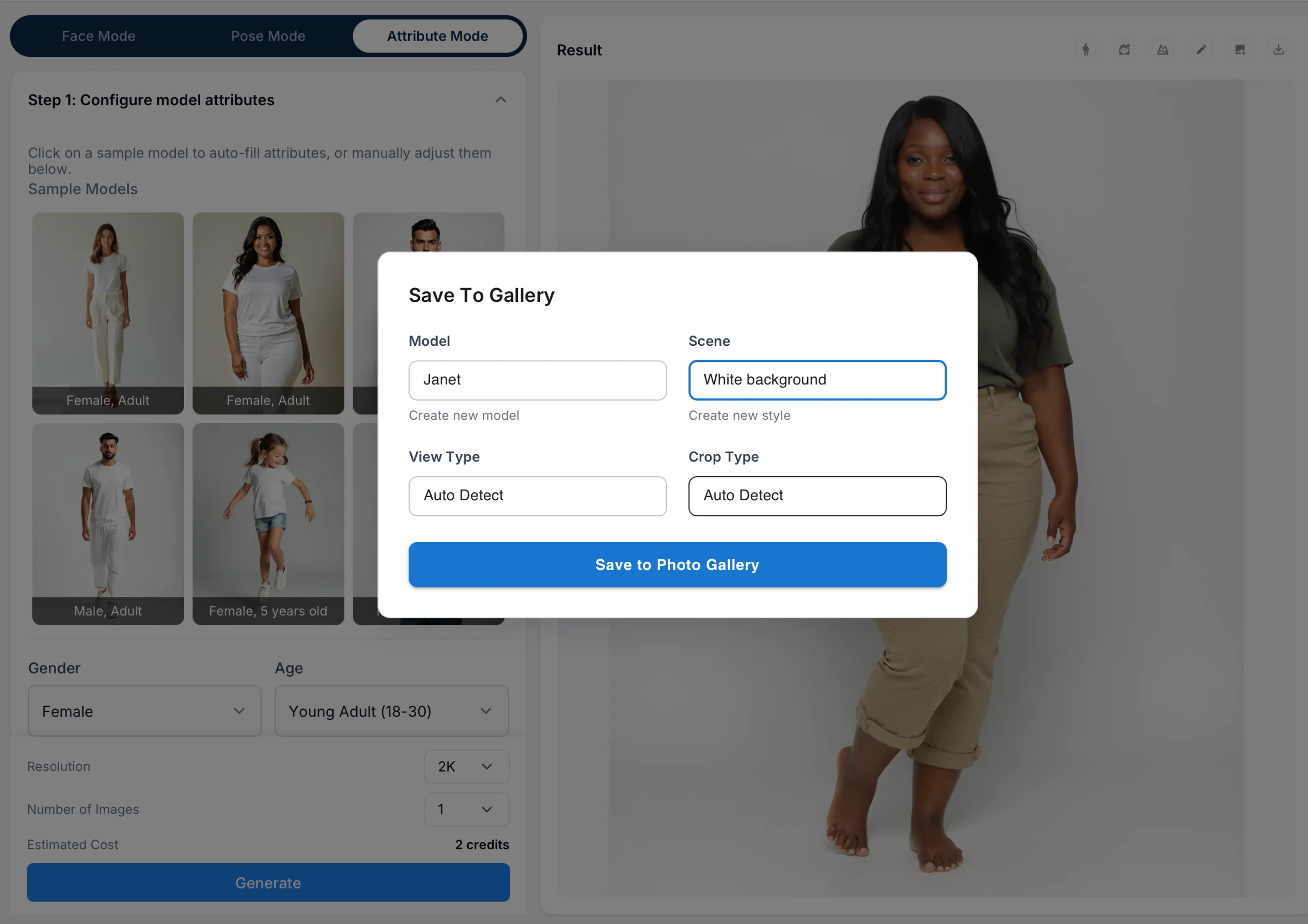
Step 7: Save or Download the Image
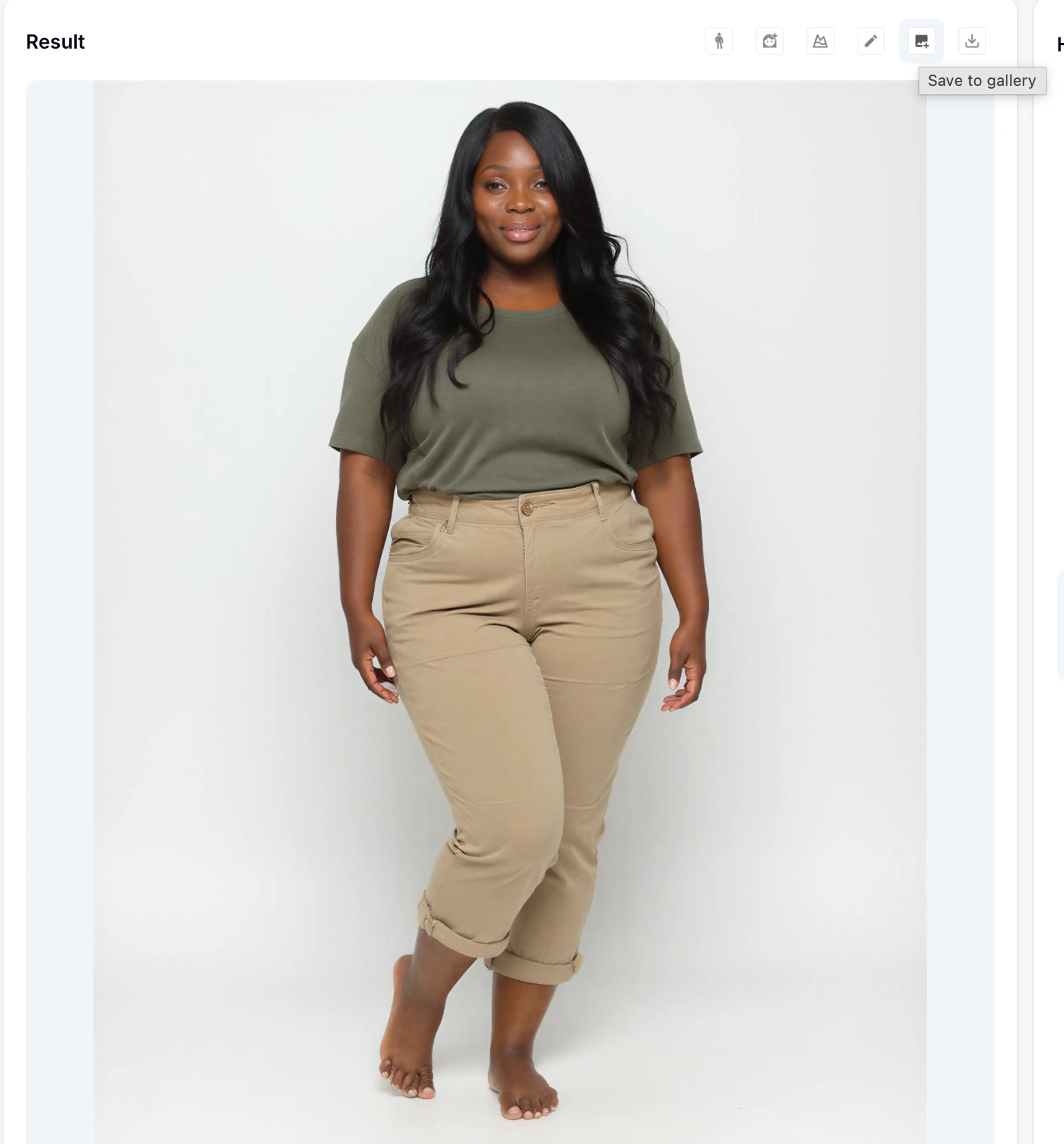
Once you are satisfied with the image, you can save it to the model gallery or download the image.
FAQs
What is Virtual Try-On?
HuHu AI’s virtual try-on tool creates realistic visuals of garments on customizable virtual models, enabling fashion companies to showcase products efficiently and affordably.
Are the virtual try on photos licensed for commercial use?
Yes, generated virtual try-on shots can be used commercially. HuHu offers copyright-free preset AI models with diverse skin tones, ages, and features for marketing and e-commerce contexts.
What are the advantages of AI virtual try-on compared to traditional photoshoots?
AI virtual try-on significantly lowers production costs, delivers results in minutes, and allows full control over model attributes like pose, body type, and styling.
How can I create my own AI models for virtual try on?
Users can fully customize AI fashion models using the model generator feature, choosing body shape, skin tone, hairstyle, facial features, or uploading reference photos.
Related Tutorials
How to Generate Model Image with Specific Pose and Background
Learn how to create a reference model image by compositing background and foreground layers for use as a style reference in HuHu AI model generation.
How to Generate Model Images with Face Reference
Learn how to generate AI model images using face references in HuHu AI Studio, including uploading faces, adding background references, and customizing attributes.
How to Generate Model Images with Style Reference
Learn how to generate model images using style references in HuHu AI Studio, including similarity levels, LoRA model selection, and auto-generated prompts.