
How to Generate Model Image with Specific Pose and Background
This tutorial shows you how to create model images for a specific model with specific background scene.
There are two ways to accomplish this request.
Option 1: Use Model Generation Face Mode
Step 1: Visit Model Generation and Navigate to the Face Mode
Upload the face image you’d like to use to create the model images
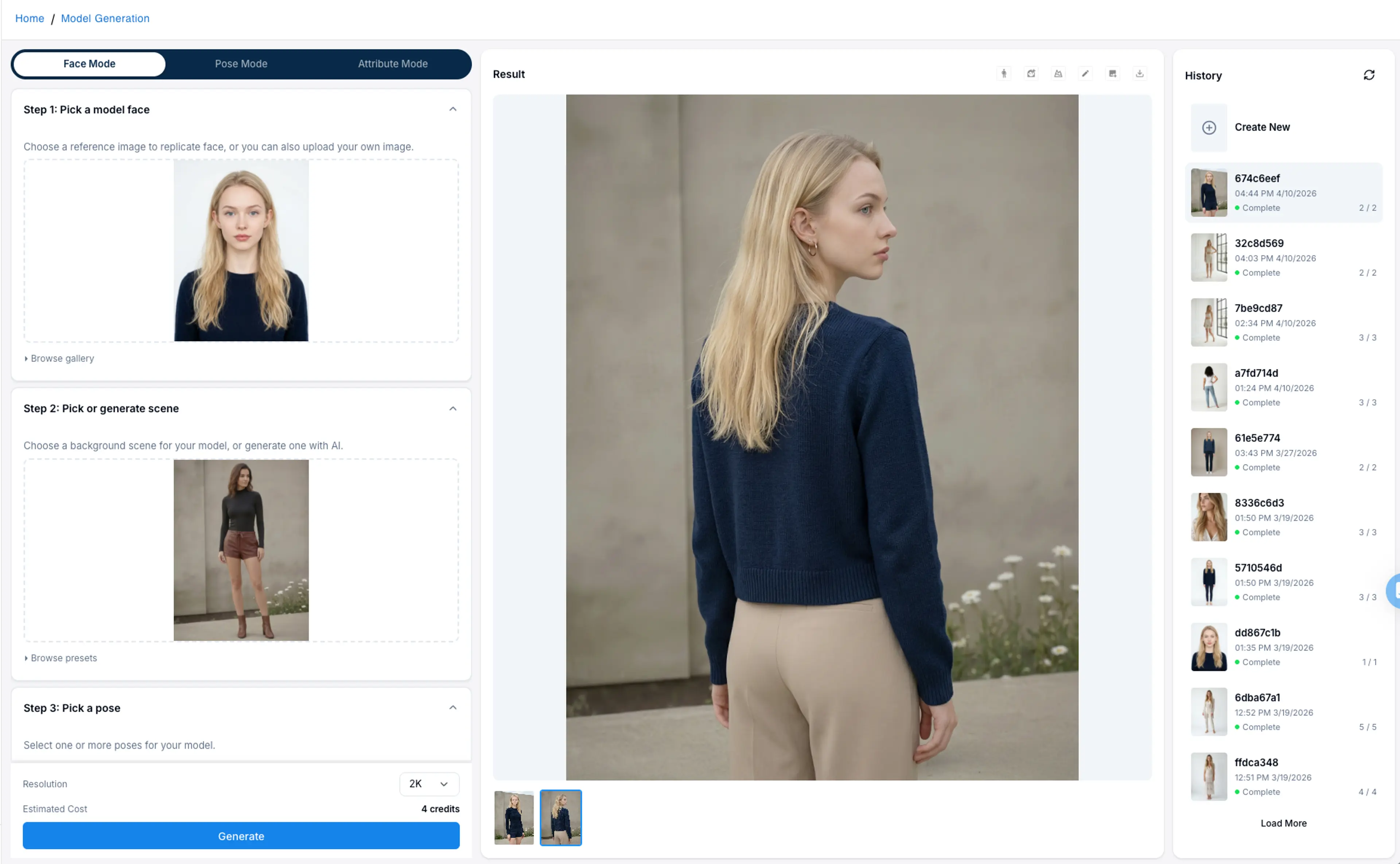
Step 2: Upload the background reference image
Select the background reference image you want to use. The system will composite the model onto the new background while maintaining the original pose.
Step 3: Select the pose you need
Multi select the poses you need for your model images. You can deselect the pose you don’t need or click the edit button to update the prompt for the poses you want.
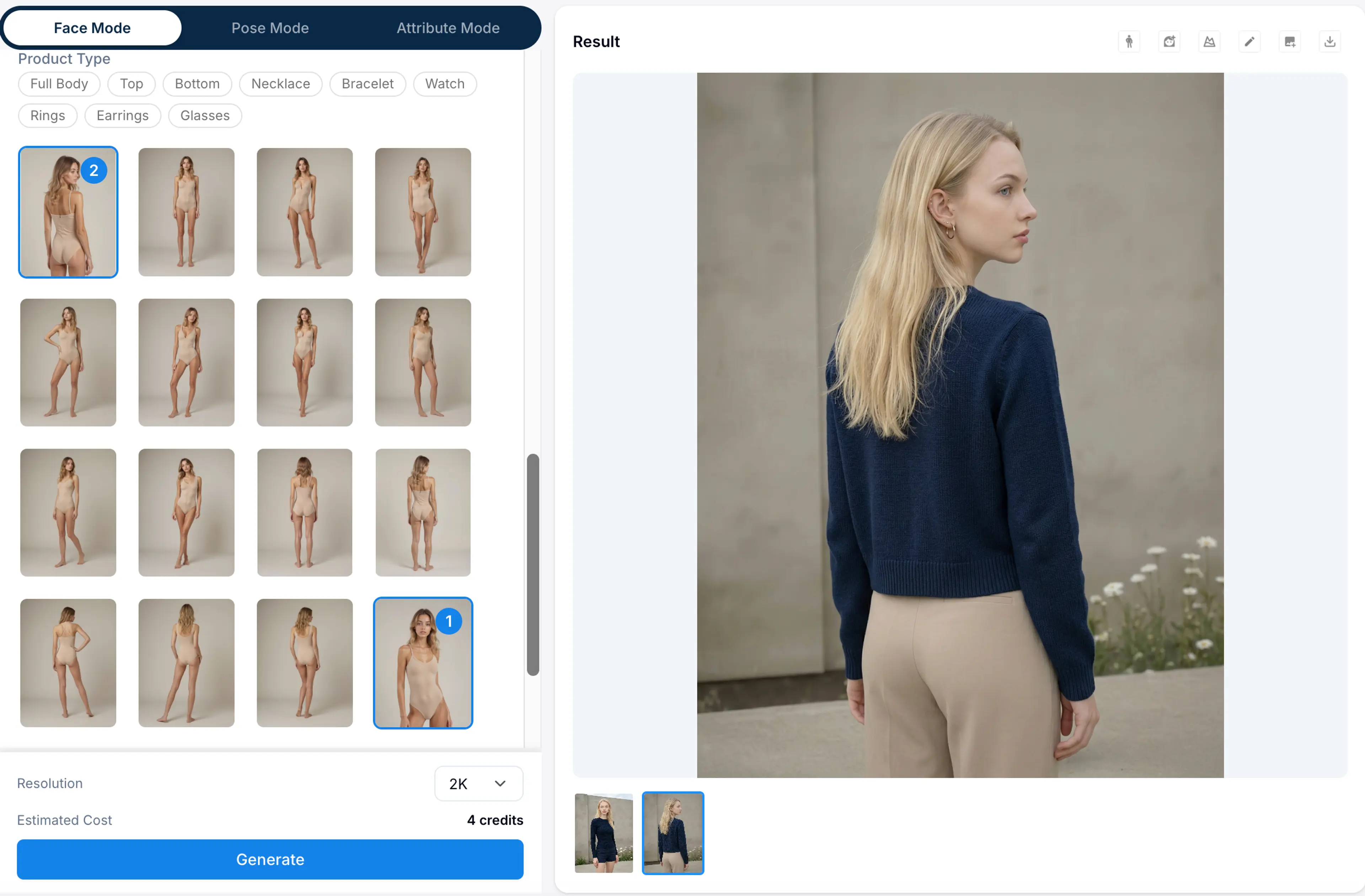
Select the number of images per pose and you’ll see the estimated credits needed for the generation job.
Step 4: Generate the results
Click the generate button to submit the generation task. Click the refresh button on the left and you’ll see the request being processed.
Step 5: Review results
Click the refresh button to check your generation status. When the generation results are ready, you can click the job card to review your generation results on the right.
If you like the result, you can click the Save to gallery button to save the image to your model gallery.
You can also continue editing the images or create more poses and view from this image.
Option 2: Use Image Retouching Change Background Feature
If you already have a model image with the pose and look you like, and you simply want to change the background scene of the model image, you can use the change background feature under the Image Retouching tool.
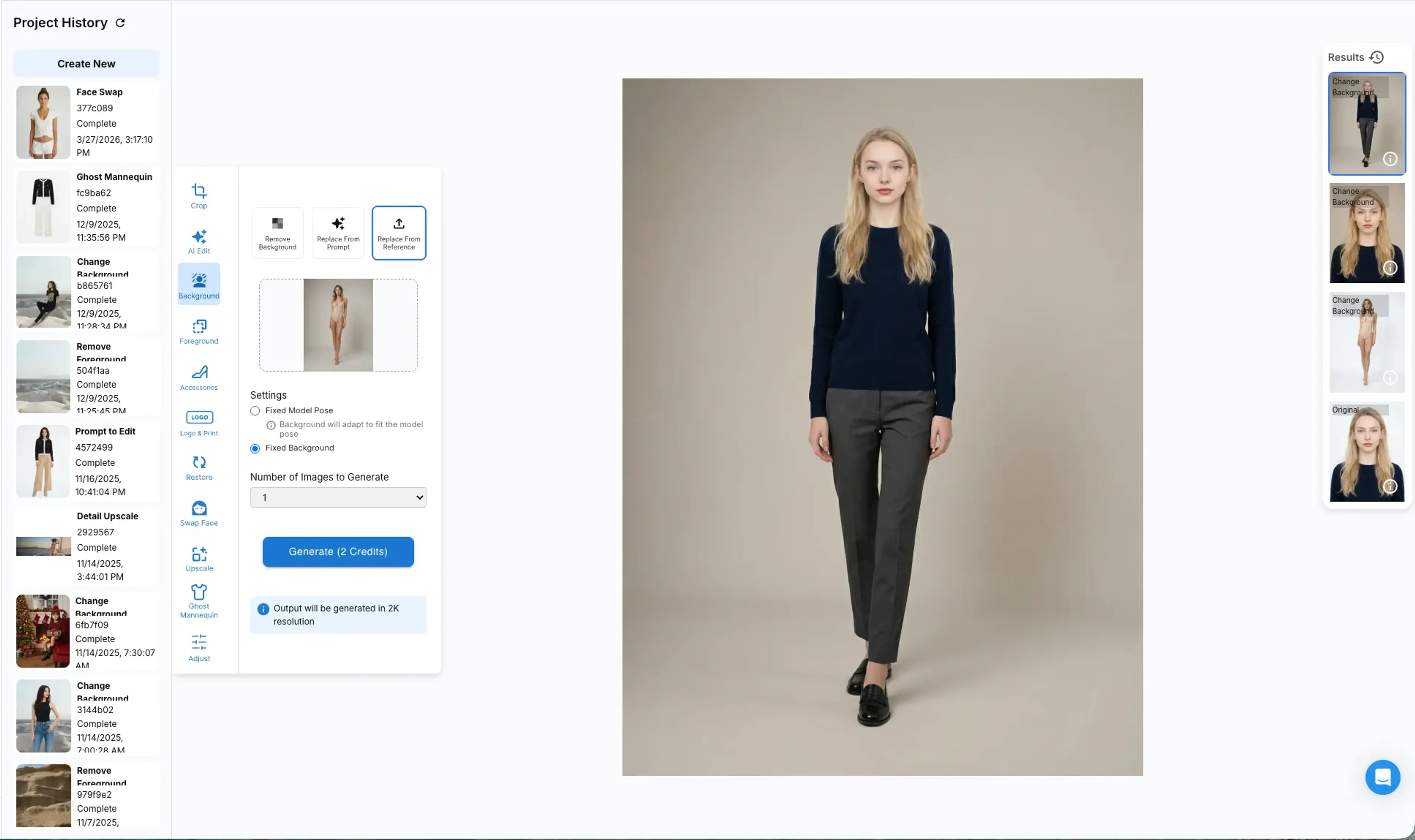
Step 1: Visit Image Retouching > Background
Navigate to the Change Background with Reference mode.
Step 2: Upload the images.
Upload the model image you’d like to change in the preview panel. Upload the background scene references in the reference uploader.
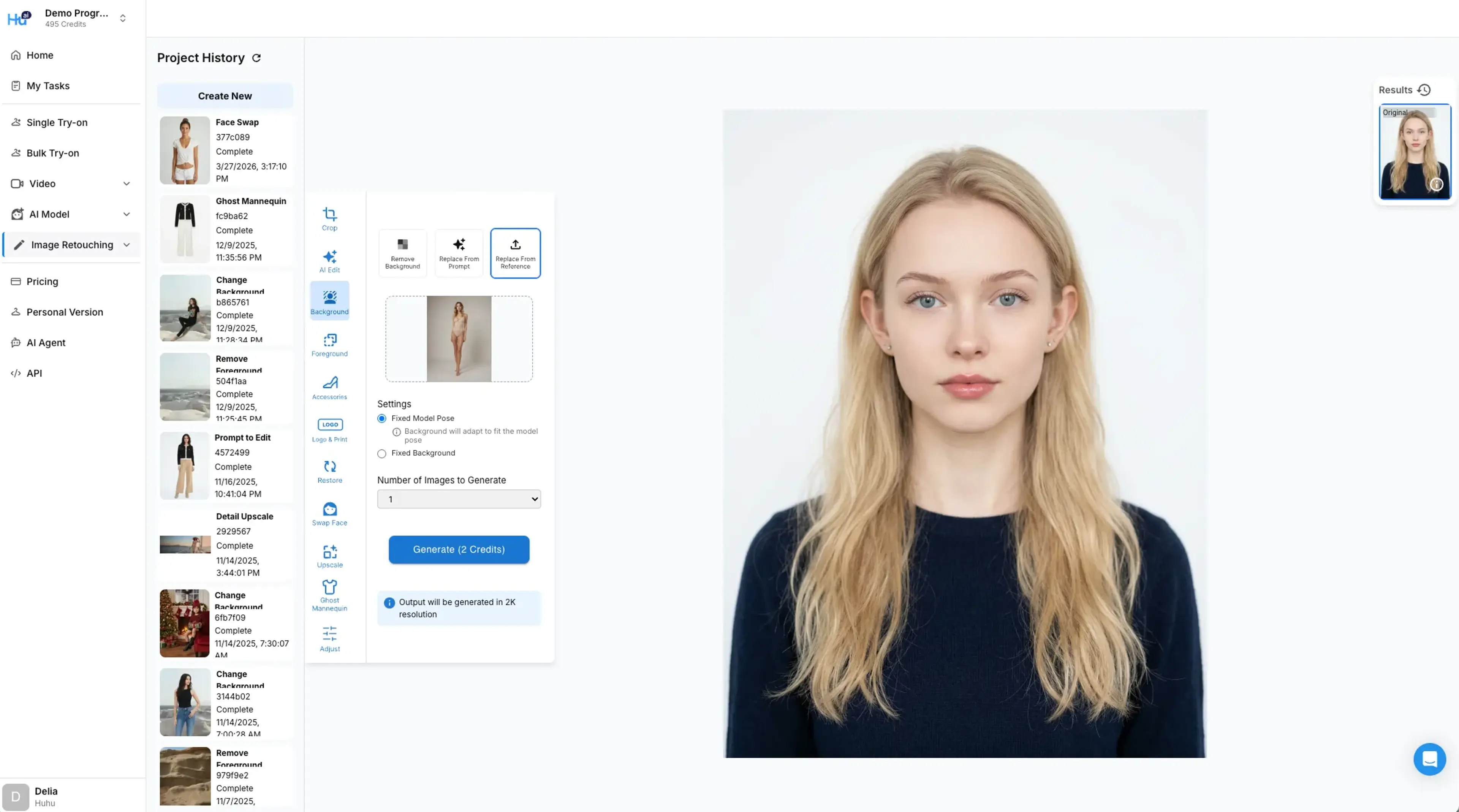
Step 3: Select mode
There are 2 change background modes:
Fixed pose mode: Choosing this mode will ensure the foreground of your main image stay the same and only change the background to match the referenced scene.
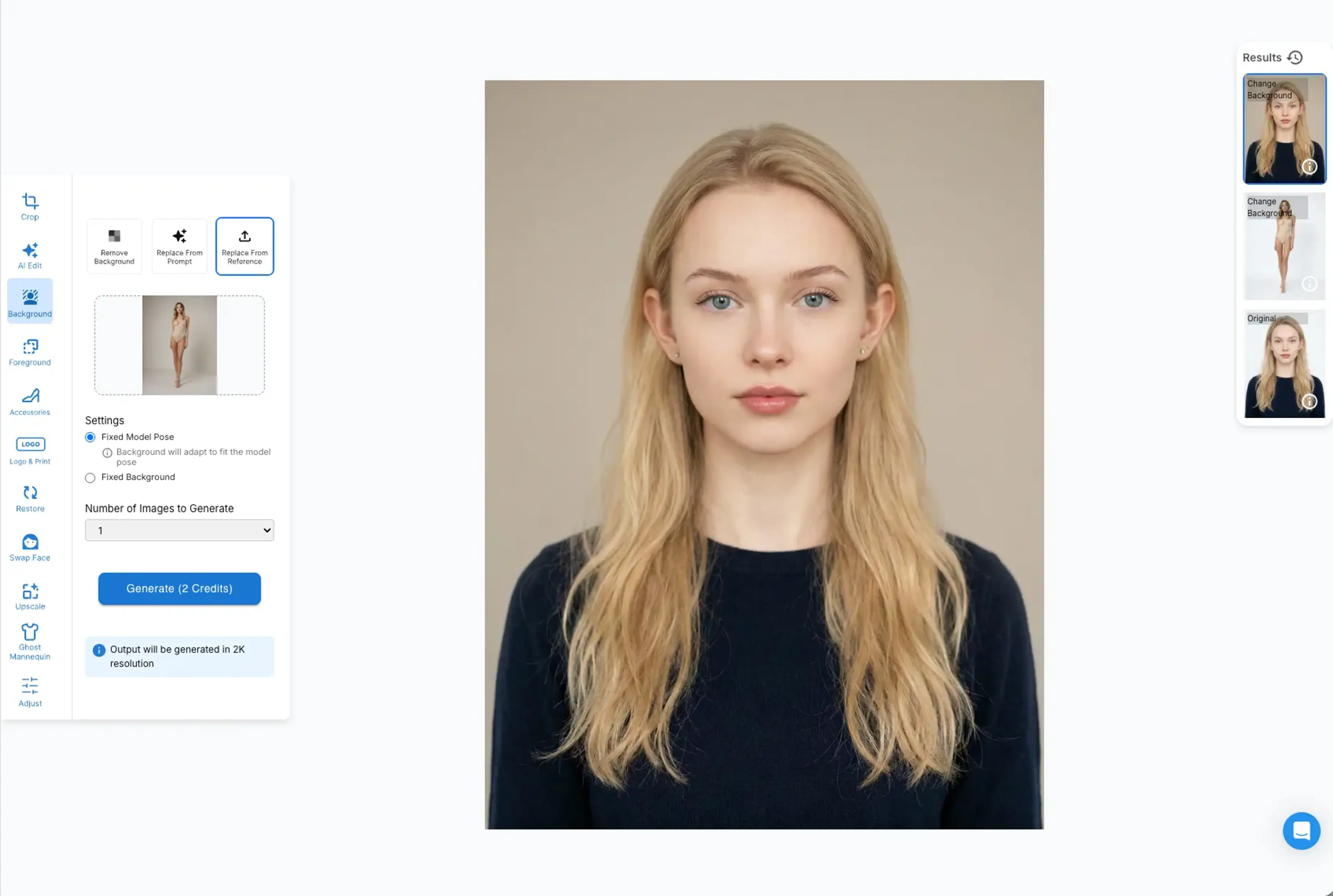
Fixed background mode: Choosing this mode will alter your foreground to match the referenced image’s pose and keep the background consistent with the referenced image.
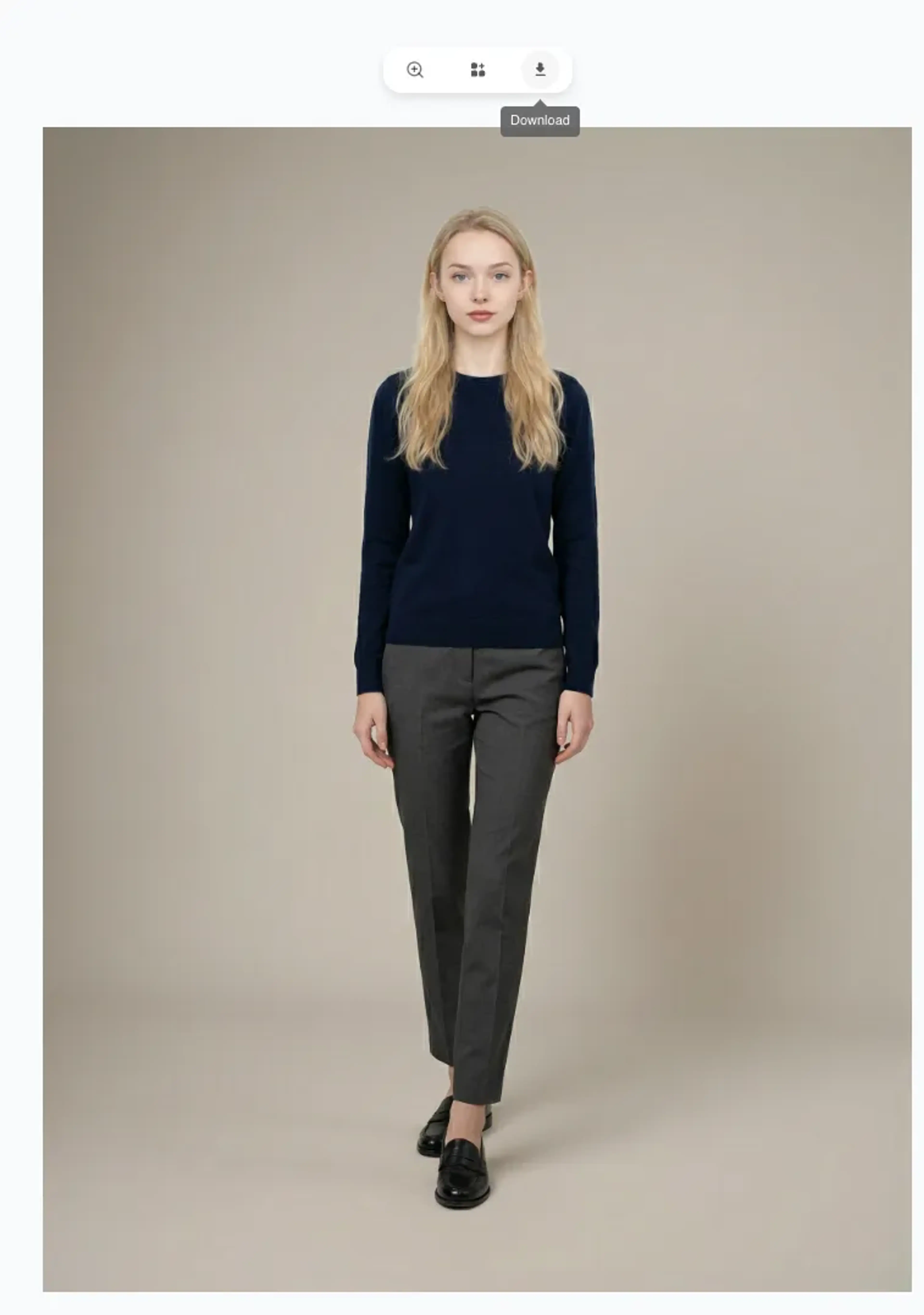
Once the images are generated, you can mouse over the image to download it or save it to the gallery.
Related Tutorials
How to Generate Model Images with Attributes
Learn how to generate AI model images using attribute controls in HuHu AI Studio, from selecting attributes to fine-tuning prompts and advanced settings.
How to Generate Model Images with Face Reference
Learn how to generate AI model images using face references in HuHu AI Studio, including uploading faces, adding background references, and customizing attributes.
How to Generate Model Images with Style Reference
Learn how to generate model images using style references in HuHu AI Studio, including similarity levels, LoRA model selection, and auto-generated prompts.