How to Bulk Download Assets
When all images are approved, we offer an easy way for you to export the assets in bulk. Currently you can export all the approved assets with their original resolution.
Step 1: Enter Bulk Export Module
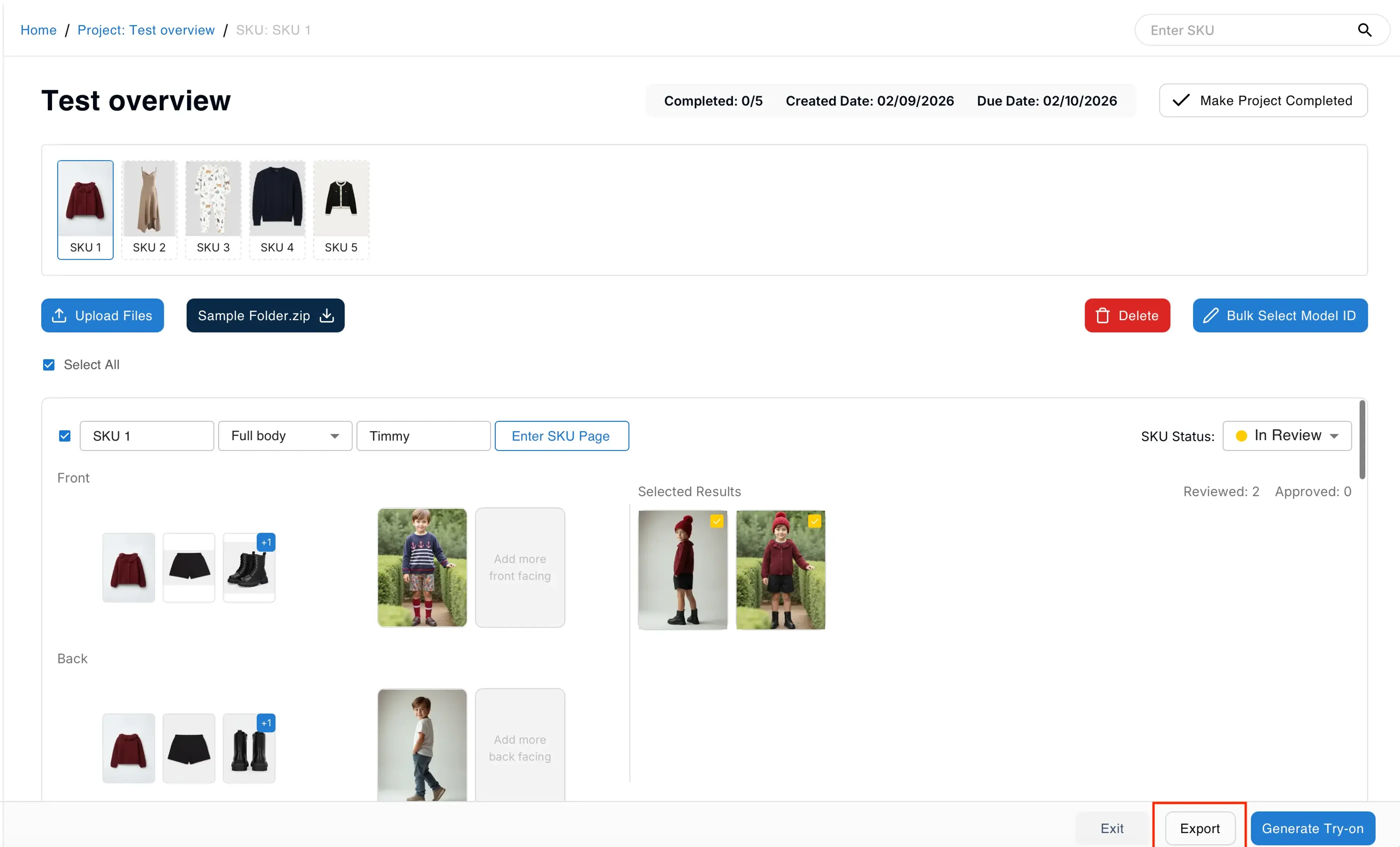
Navigate to the Project Overview page. Find the Export button next to the Generate Try-on button.
Step 2: Select Images to Export
Click the export button to enter the Bulk Export module.
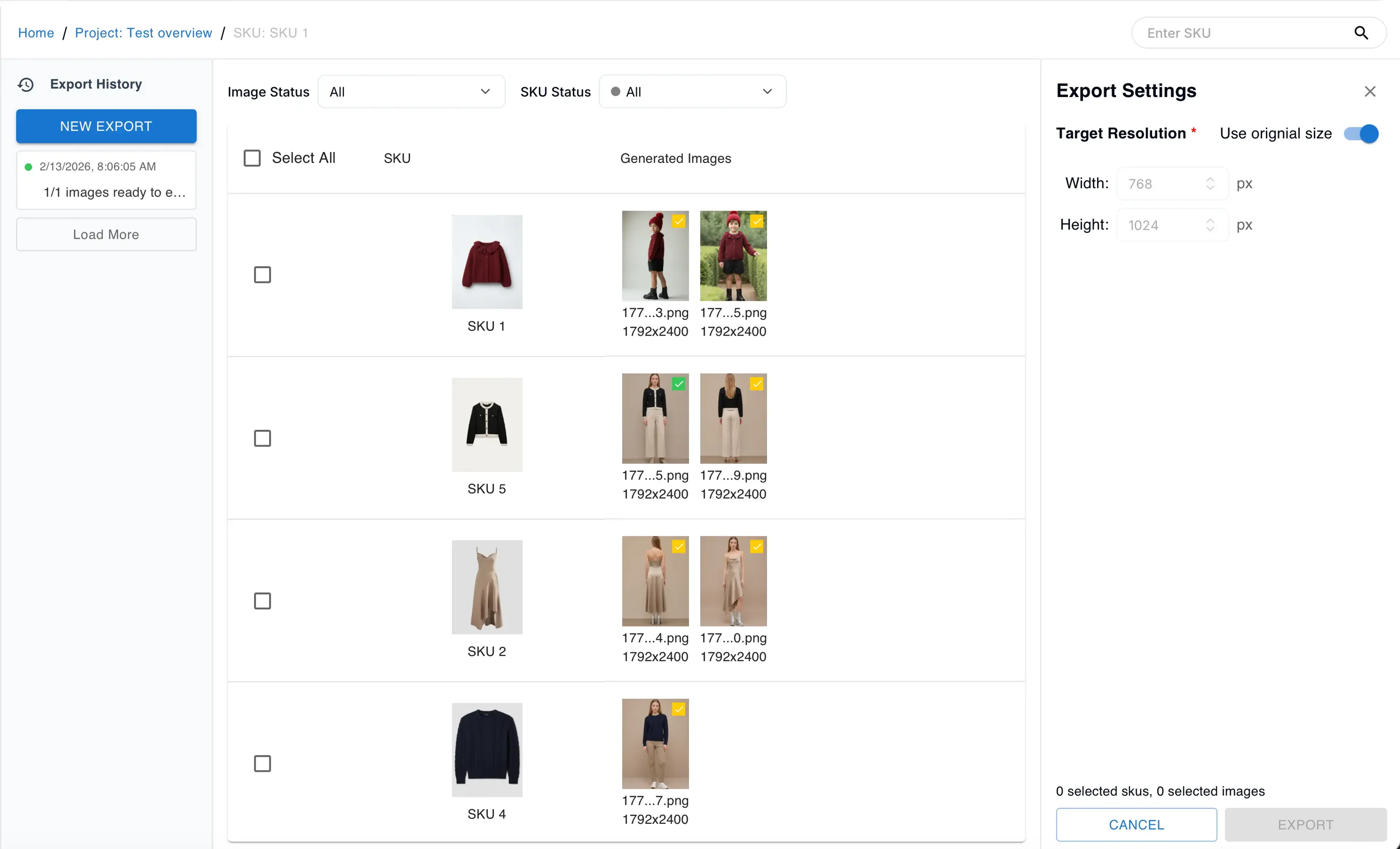
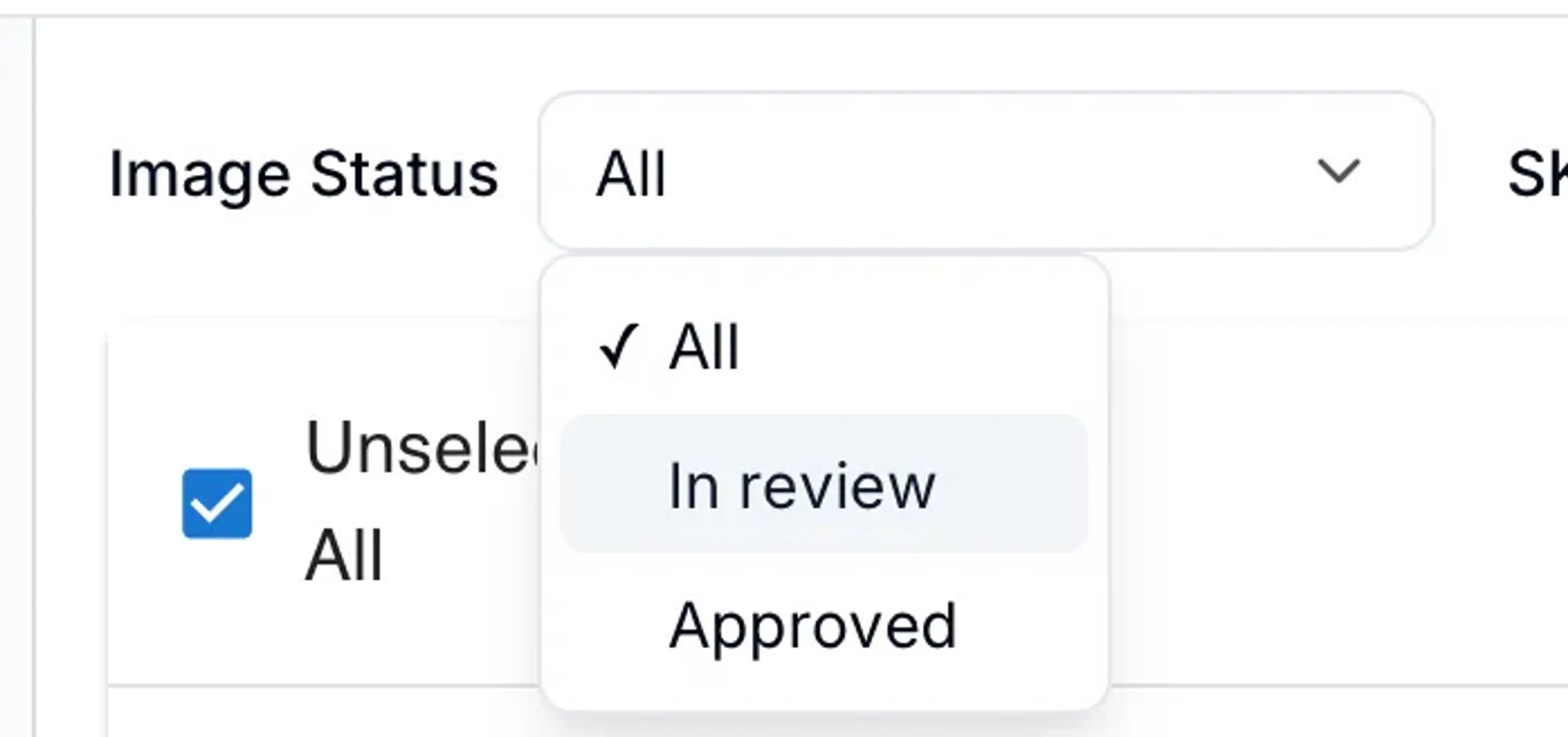
You can select all the images from all of the SKUs by clicking the select all button. Or you can filter only the approved or in review images from a specific project status.
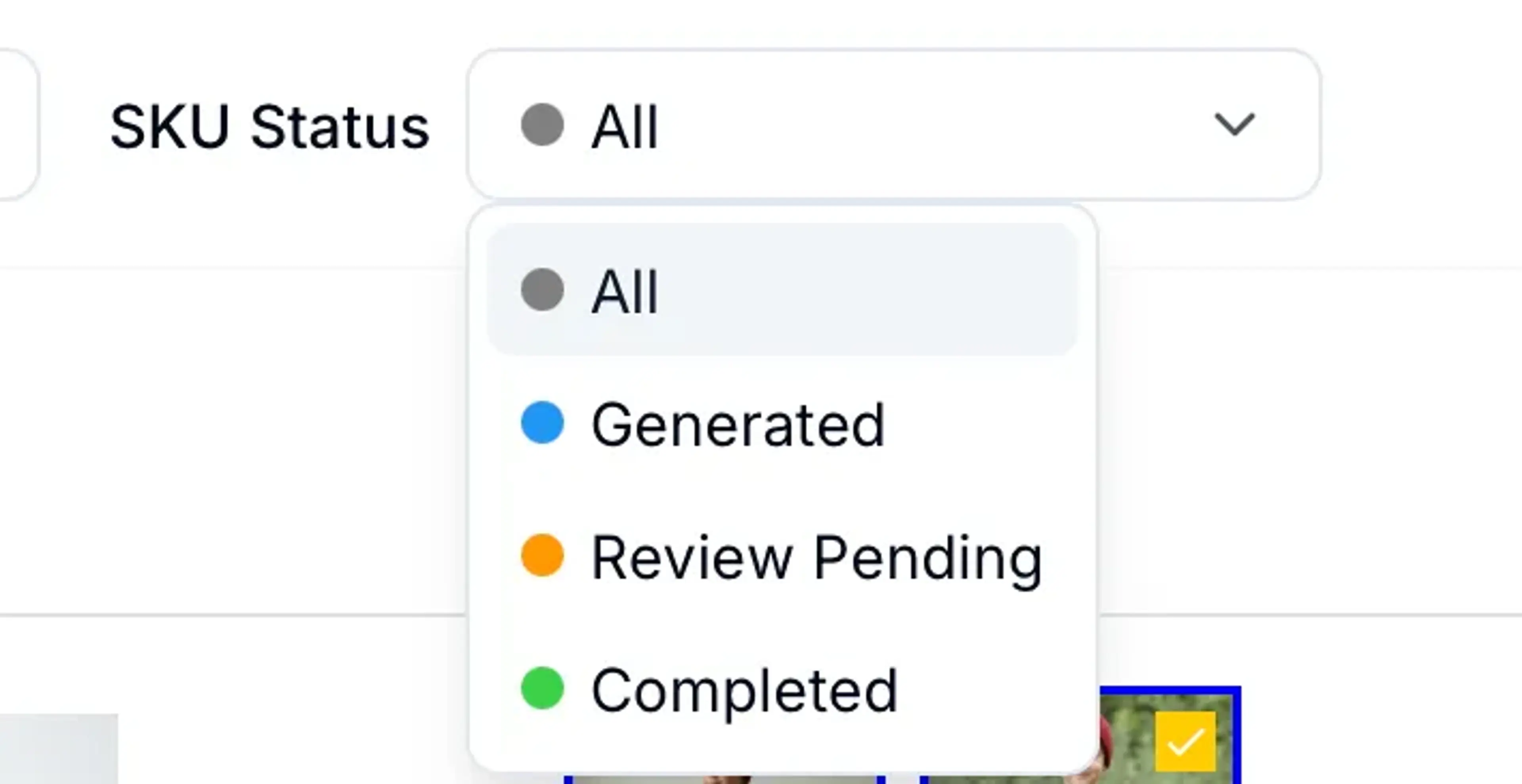
You can also hand pick the SKU you’d like to export.
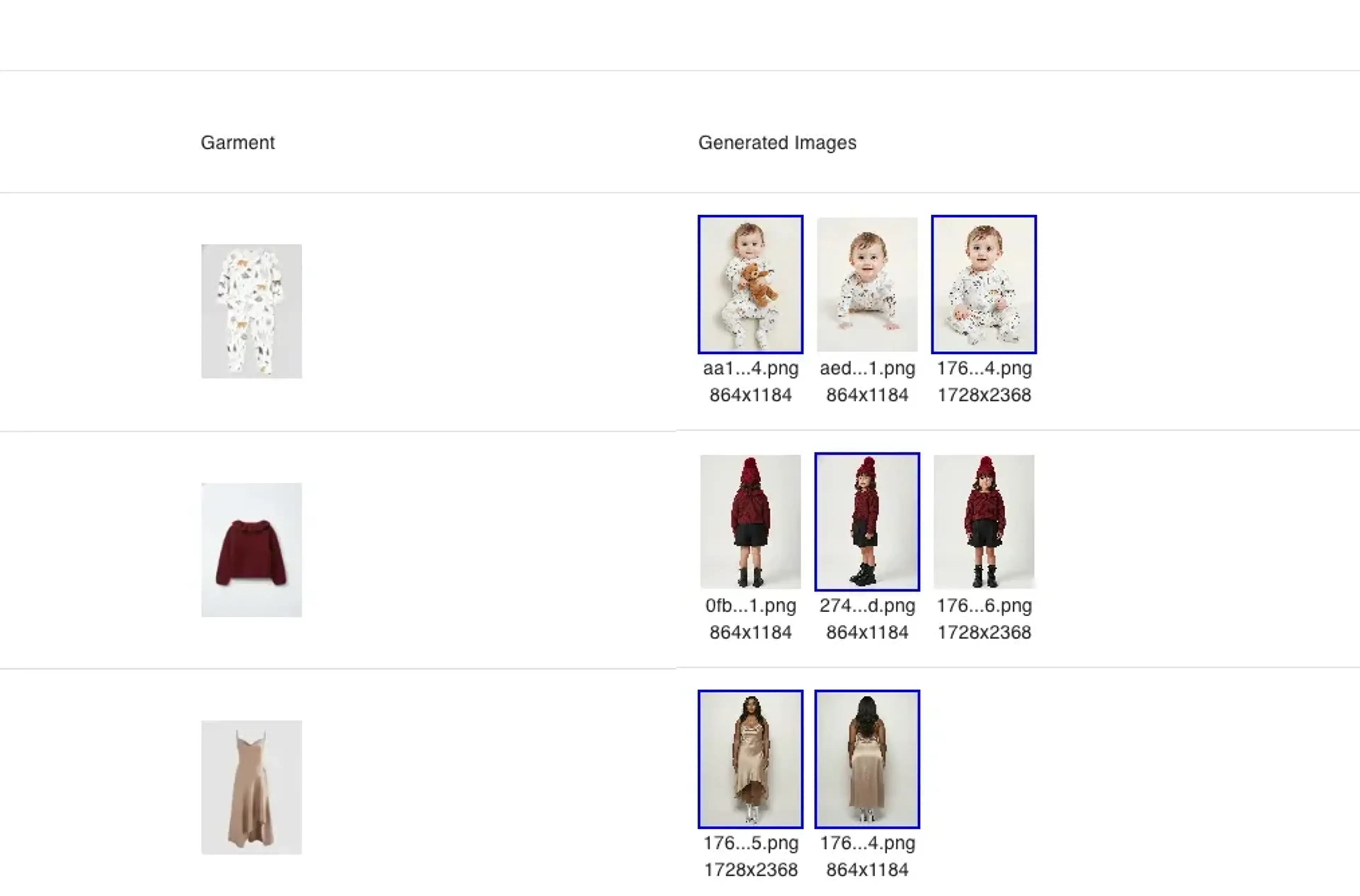
By clicking the images with the blue strokes, you can deselect the images, and reselect the images.
Step 3: Confirm Resolution and Continue
There are two different resolution options:
Option 1: Keep Original Resolution
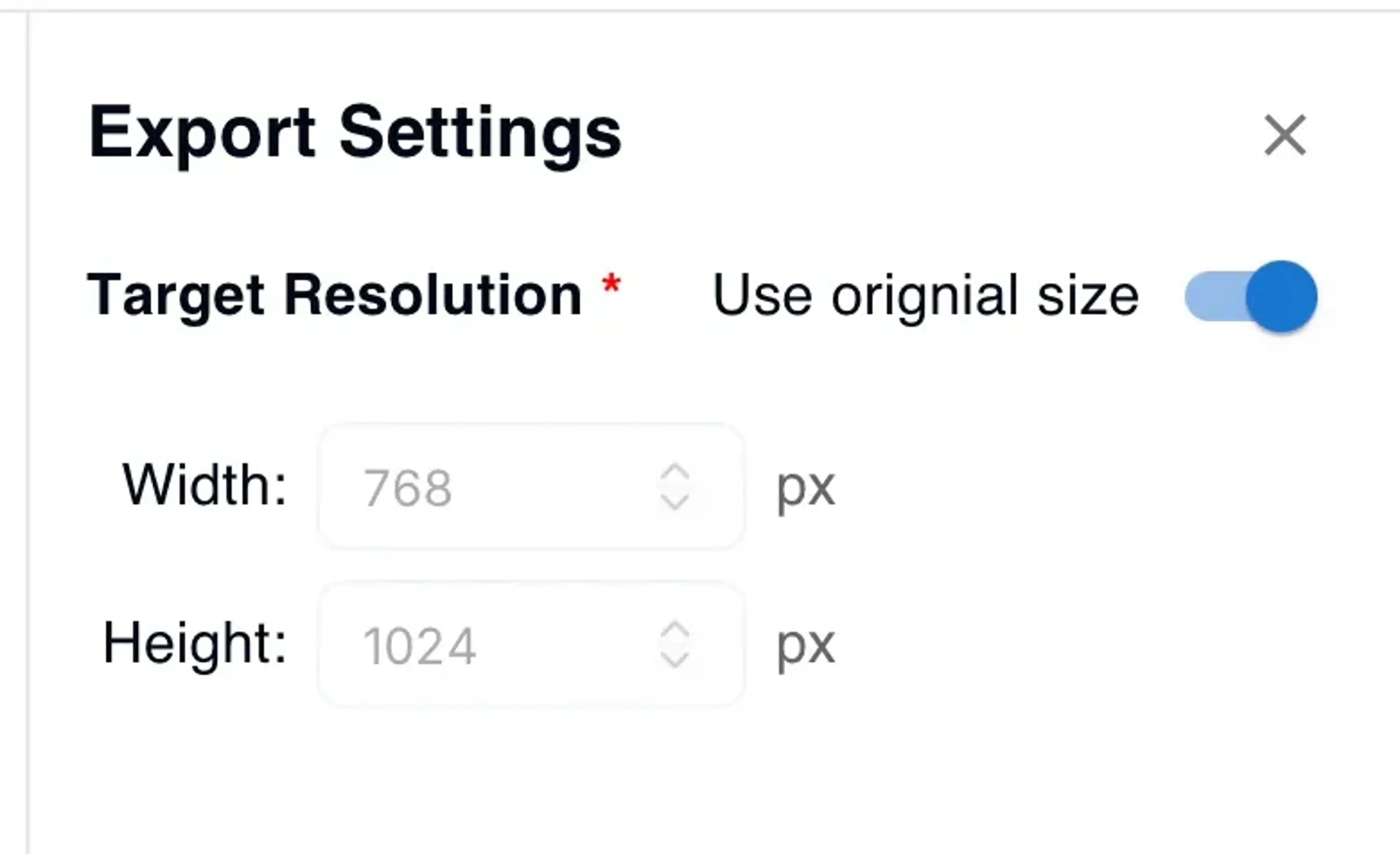
Keep the resolution of the original image. On the Export settings, toggle on “Use original size”. The exported images will keep the same size as the original.
Option 2: Change to Target Resolution
On the Export settings, toggle off “Use original size” and enter your target resolution.
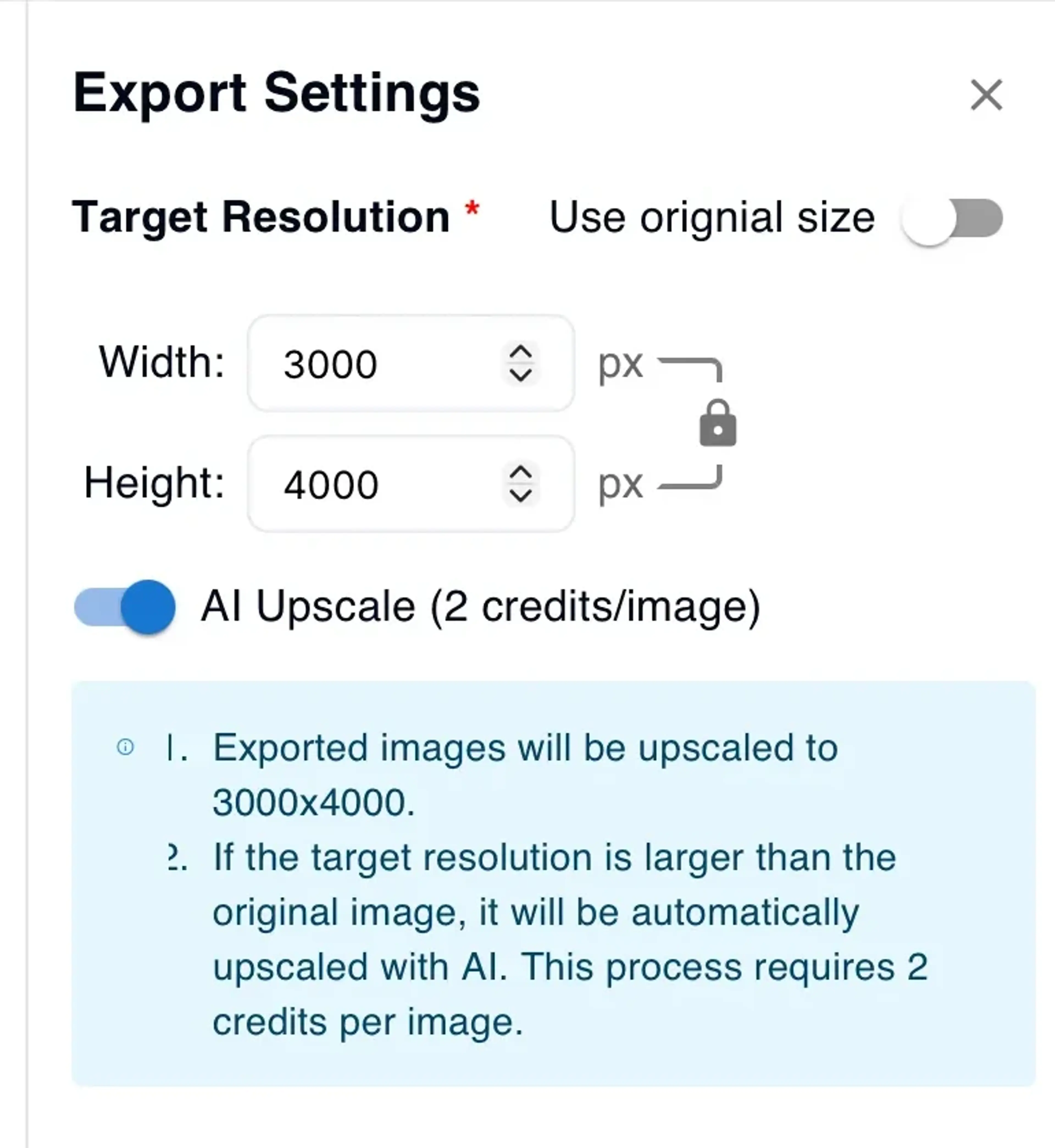
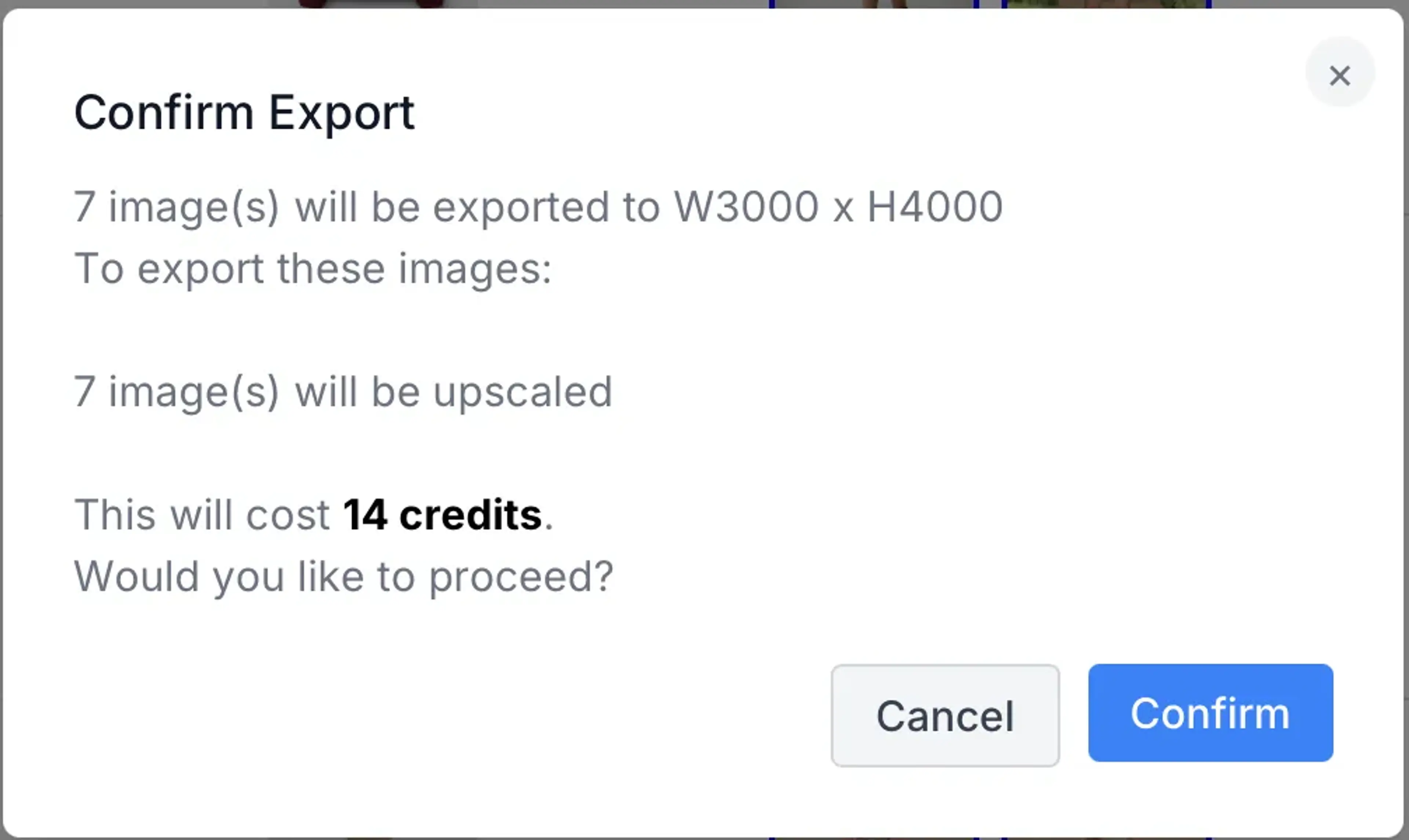
Toggle on the AI upscale will automatically upscale the images when needed based on the target resolution. Confirm the credits needed to upscale the images and continue to processing.
Step 4: Configure Download Settings
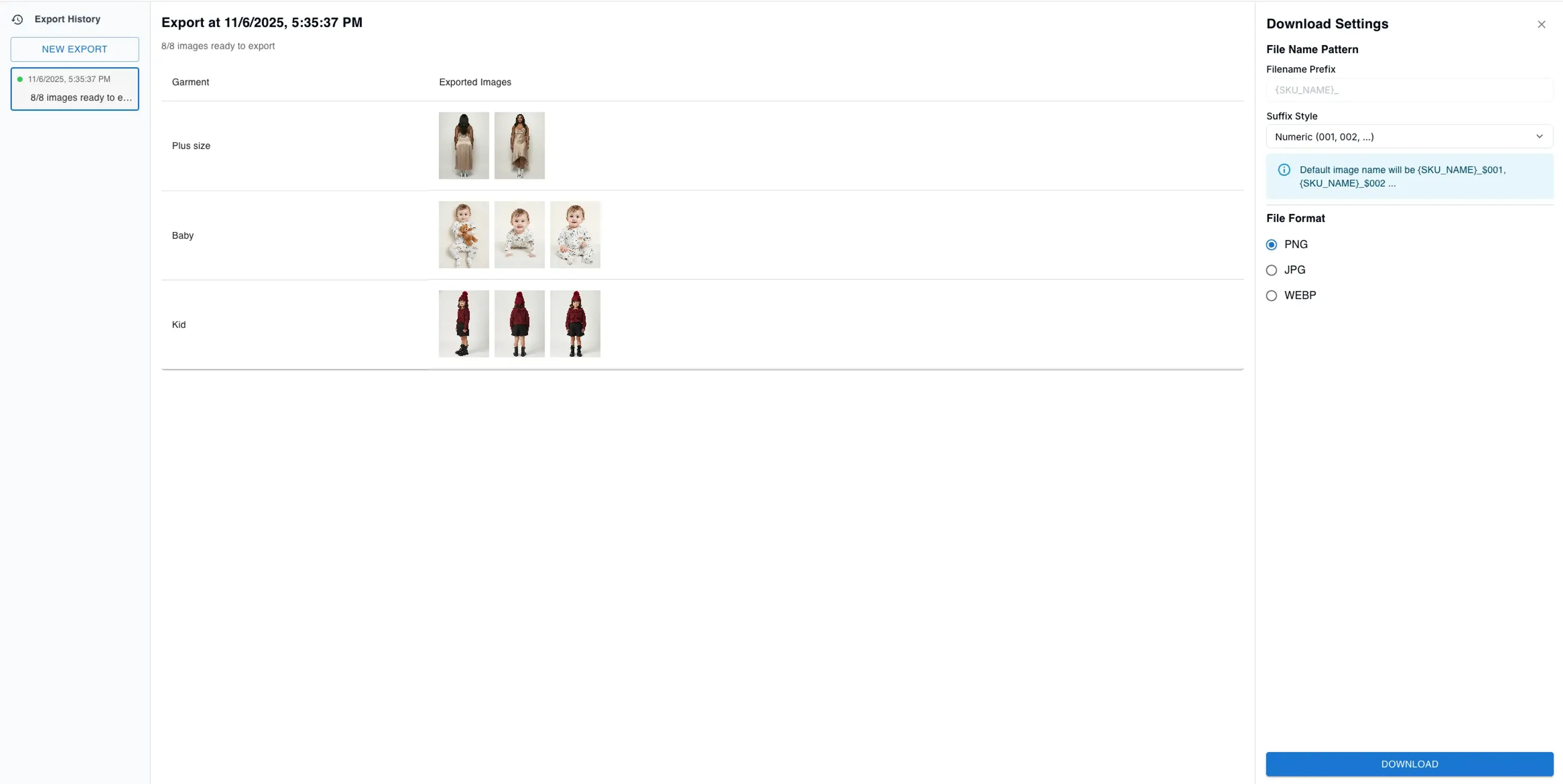
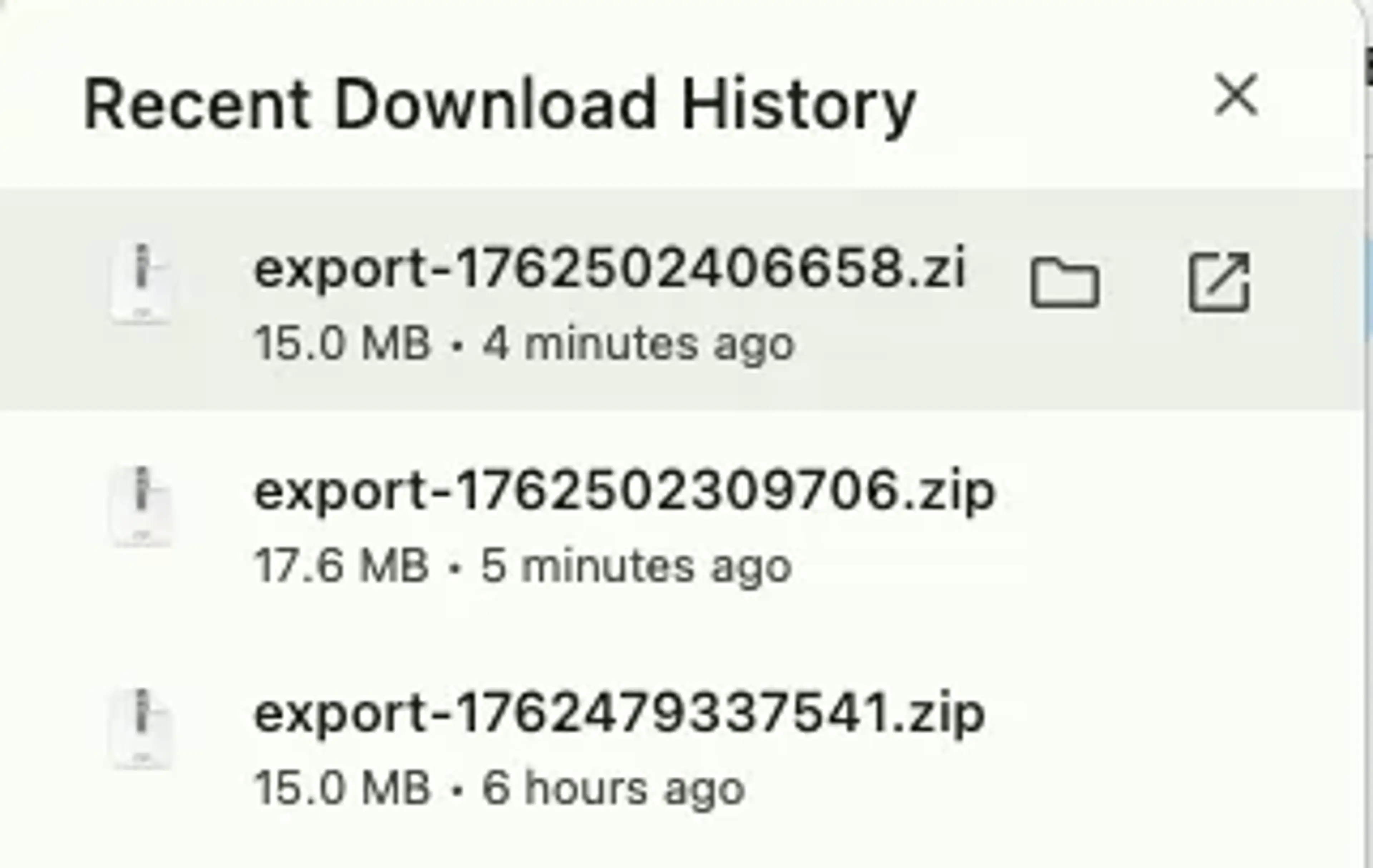
In the download settings, you can customize the suffix for your file names. Currently the system default the file name prefix as the SKU name. You can also select the file format you’d like to convert to. Once everything is set, hit the download button, the files will be downloaded as a zip file to your local drive.
Step 5: Check Downloaded Files
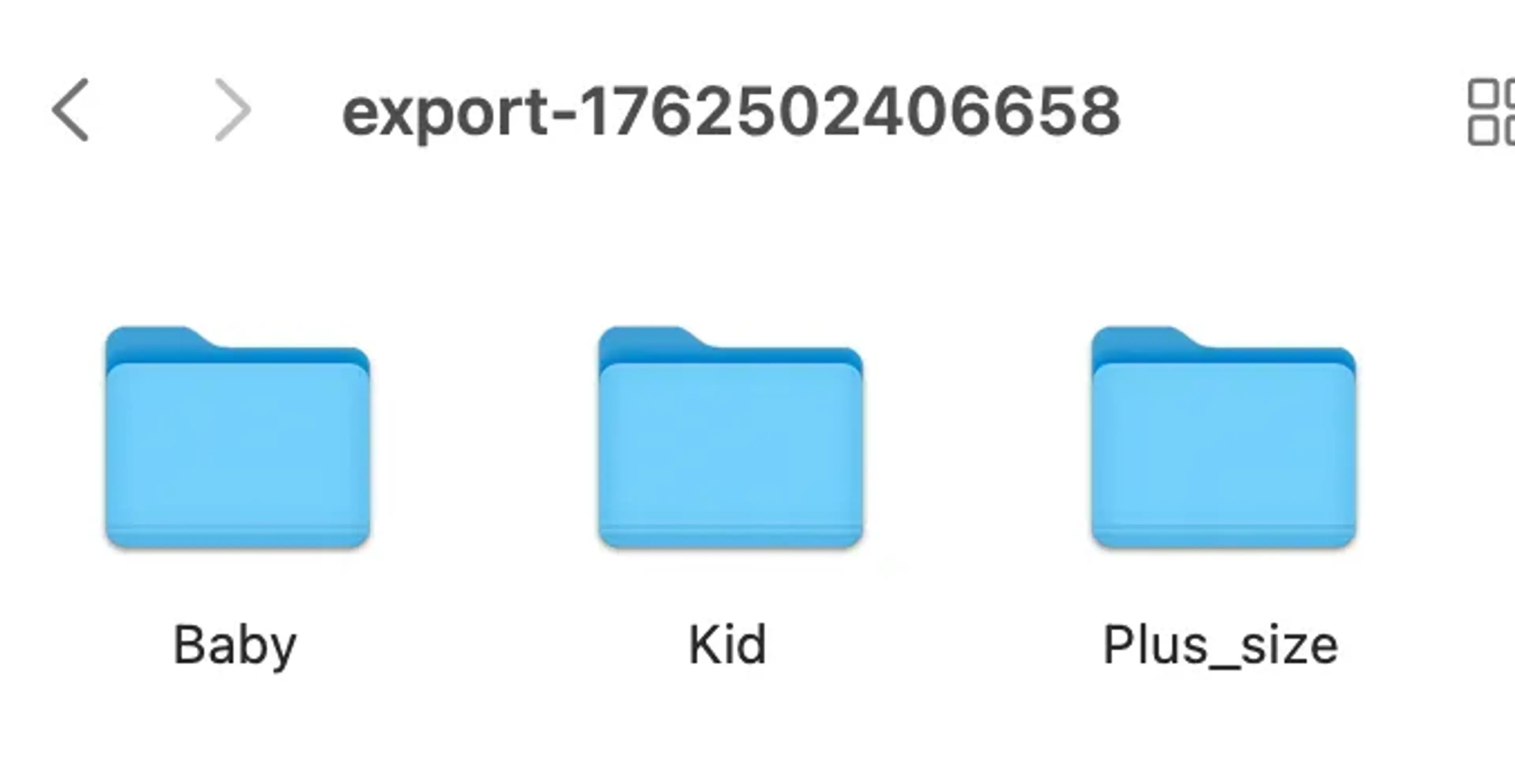
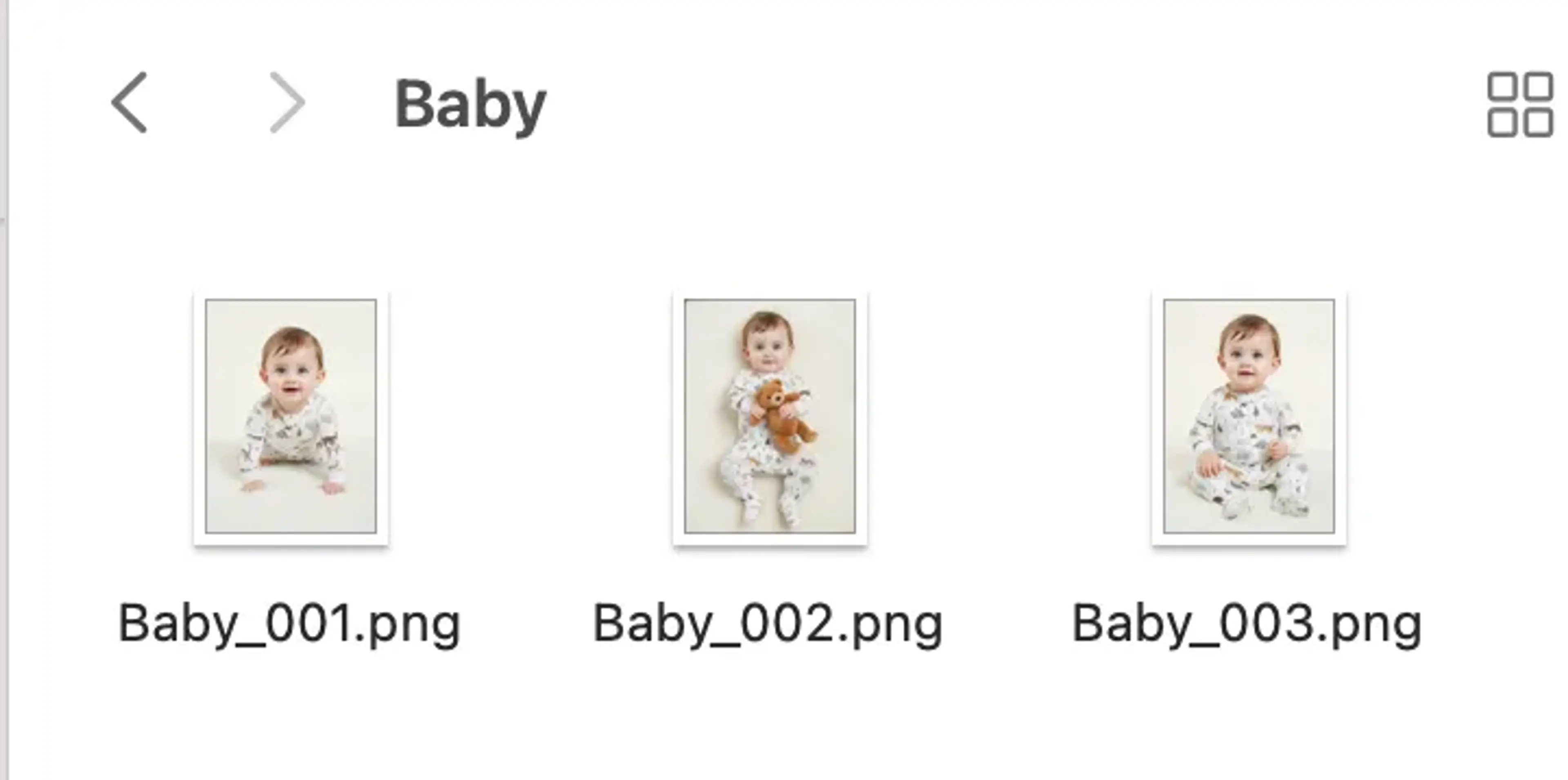
The downloaded files are grouped into 1 folder per each SKU, and in each folder, the images are named with the set prefix and suffix.
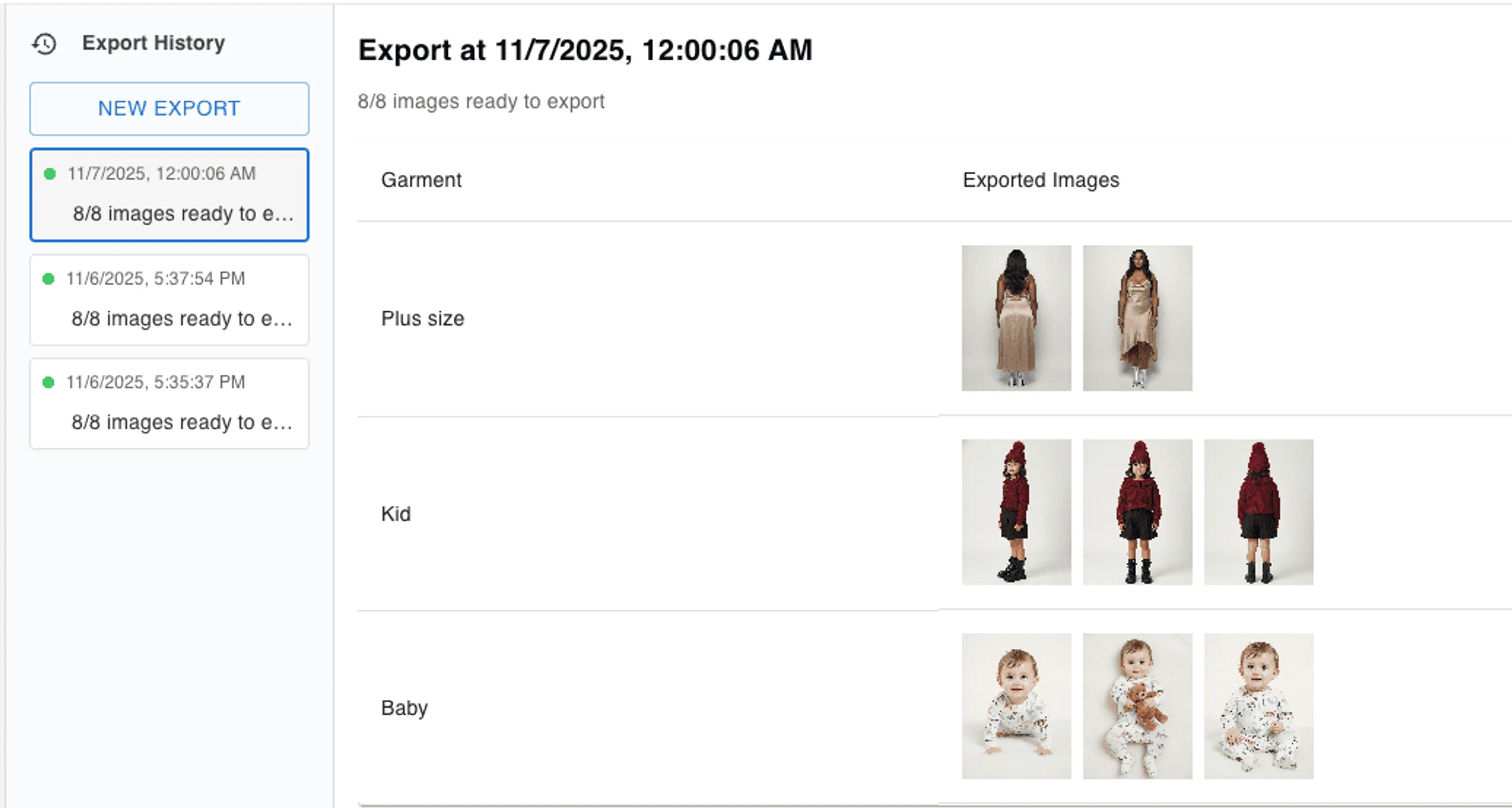
Export History
All your export jobs are kept in the Export History. You can see the last export timestamp and click into each job to see what has been downloaded. You can download the files of those jobs again. You can also initiate a new export job by clicking the New Export button.